How to Add a Google Map Element Inside Breakdance Builder
Learn how to pin your business location on your website! Here’s a quick guide on how to add a Google Map in Breakdance.

Christy Cañete
Updated July 31, 2023
Google Maps Embed Location in Breakdance Builder
Reading Time: 5 minutes
Need to show your customers exactly where you are? In just a few minutes you could add dynamic Google Maps directly to your WordPress sites
Embedding a Google Map on your website is a key feature for businesses to build trust, provide convenience, and drive foot traffic directly to their locations.
In this tutorial, I will guide you through adding a Google map to your website using Breakdance Builder.
Method 1: Use Custom Code
Adding a custom code to your page is the easiest method of directly putting a map on your website, and gives you a few options to tweak how it is formatted.
Here are the steps you should follow:
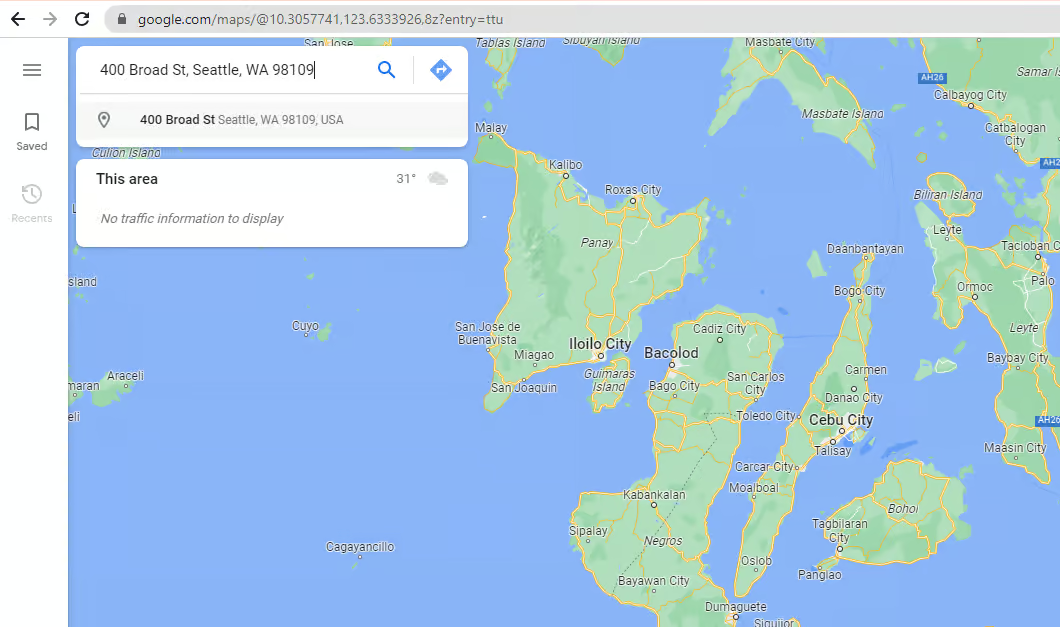
1. Go to Google Map & Enter Business Location
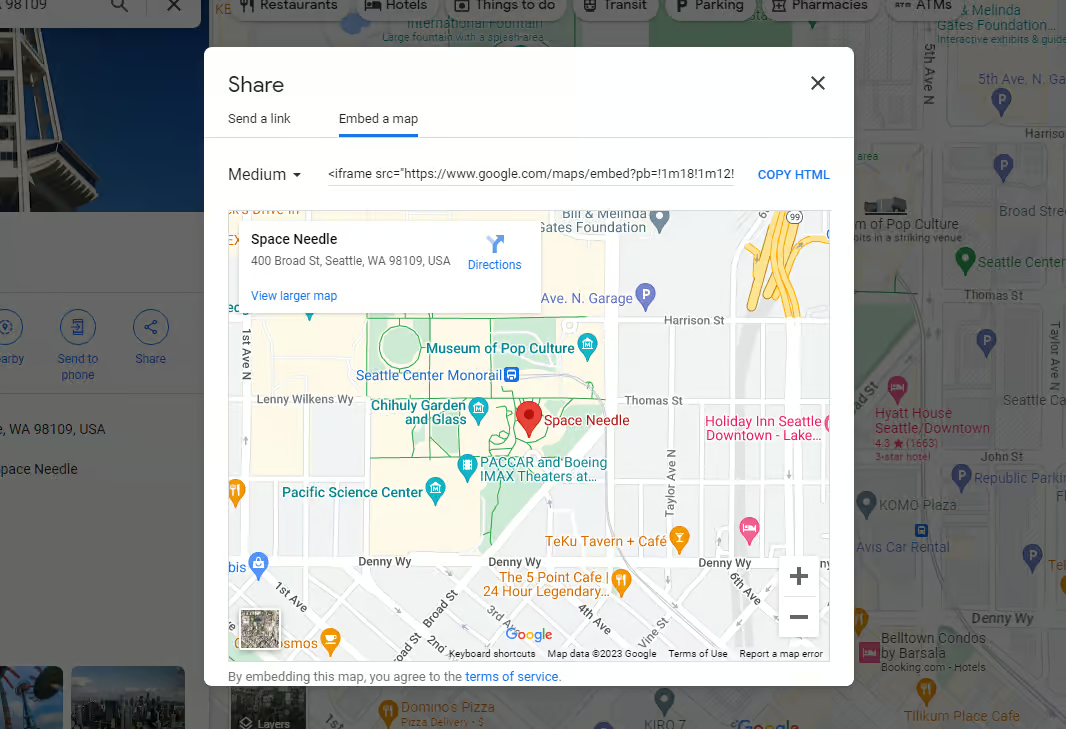
2. Click the share icon. Go to ‘Embed a map’ and click ‘COPY HTML.’ This will copy the map’s source code into your clipboard.
3. Open your ‘Contact Us’ or page you're looking to add a map on within Breakdance.
4. Add a new section just above the contact form section (or wherever the map should go).
5. On the left-hand side of the editor, search for the Code Block element and add it to your page.
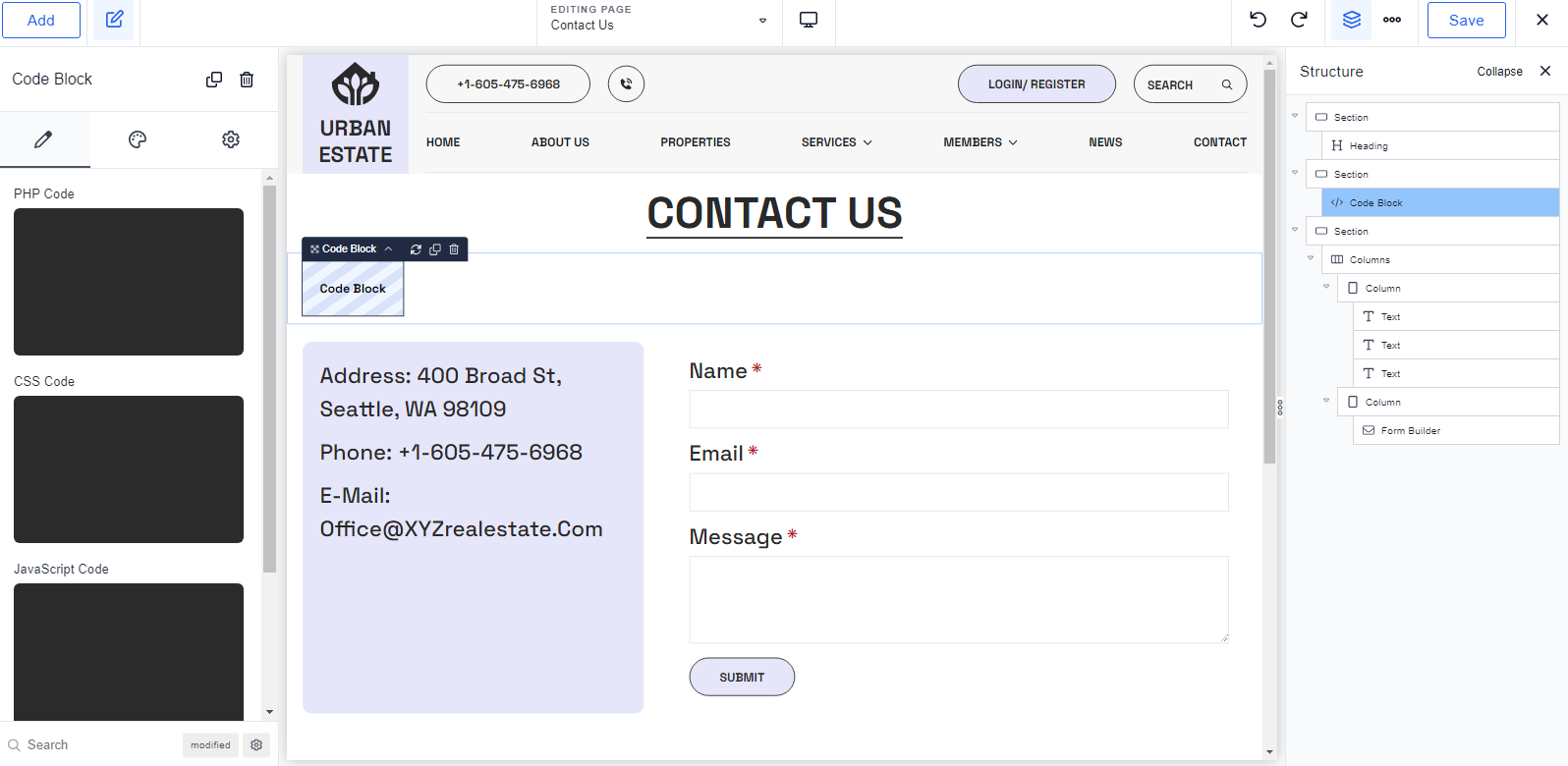
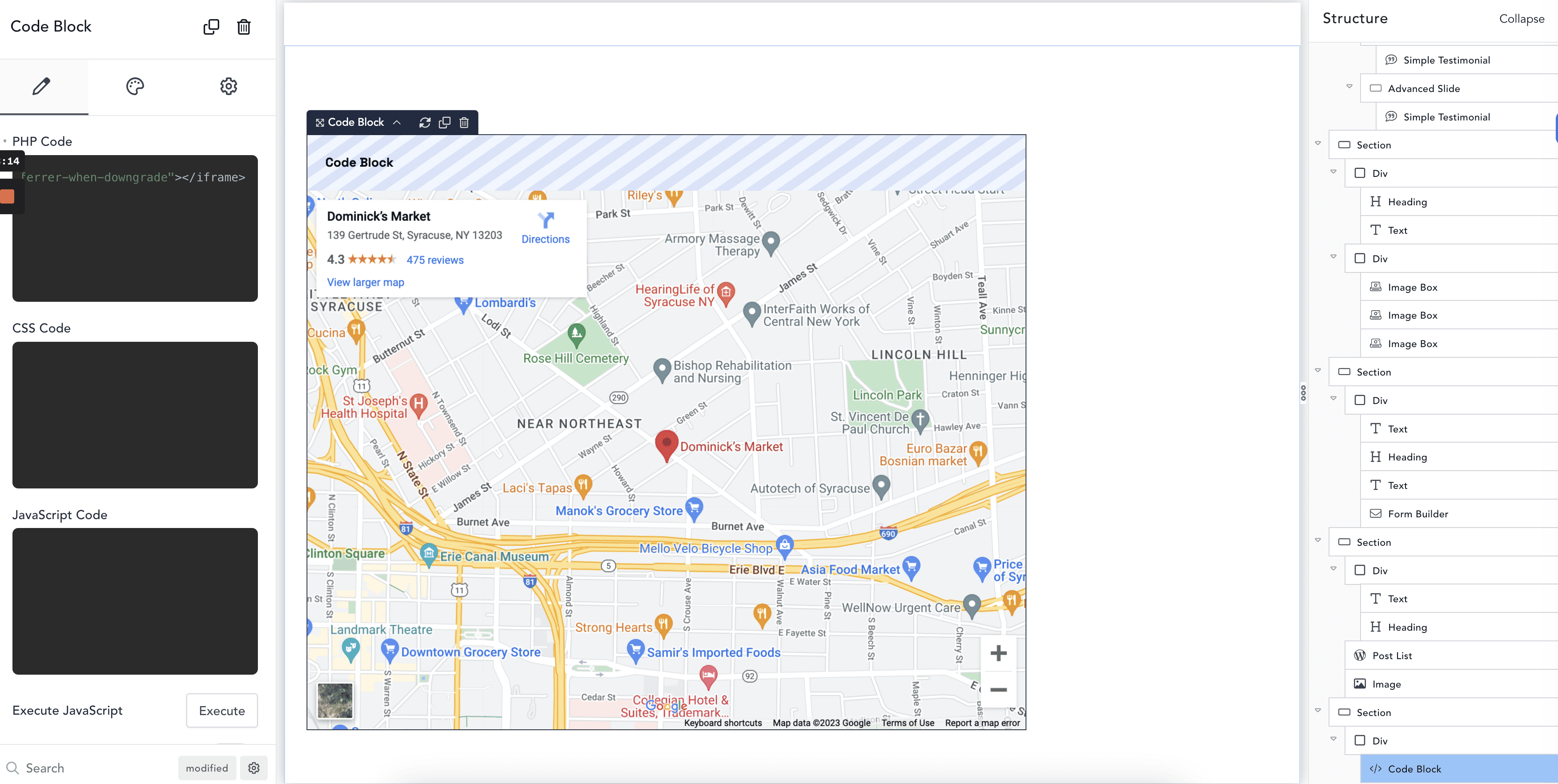
6. There are many ways to add custom codes in Breakdance. But in this example, we’ll be using the ‘PHP Code’ block to add our HTML code from the Google map. You can add HTML in the PHP block and it will work as normal.
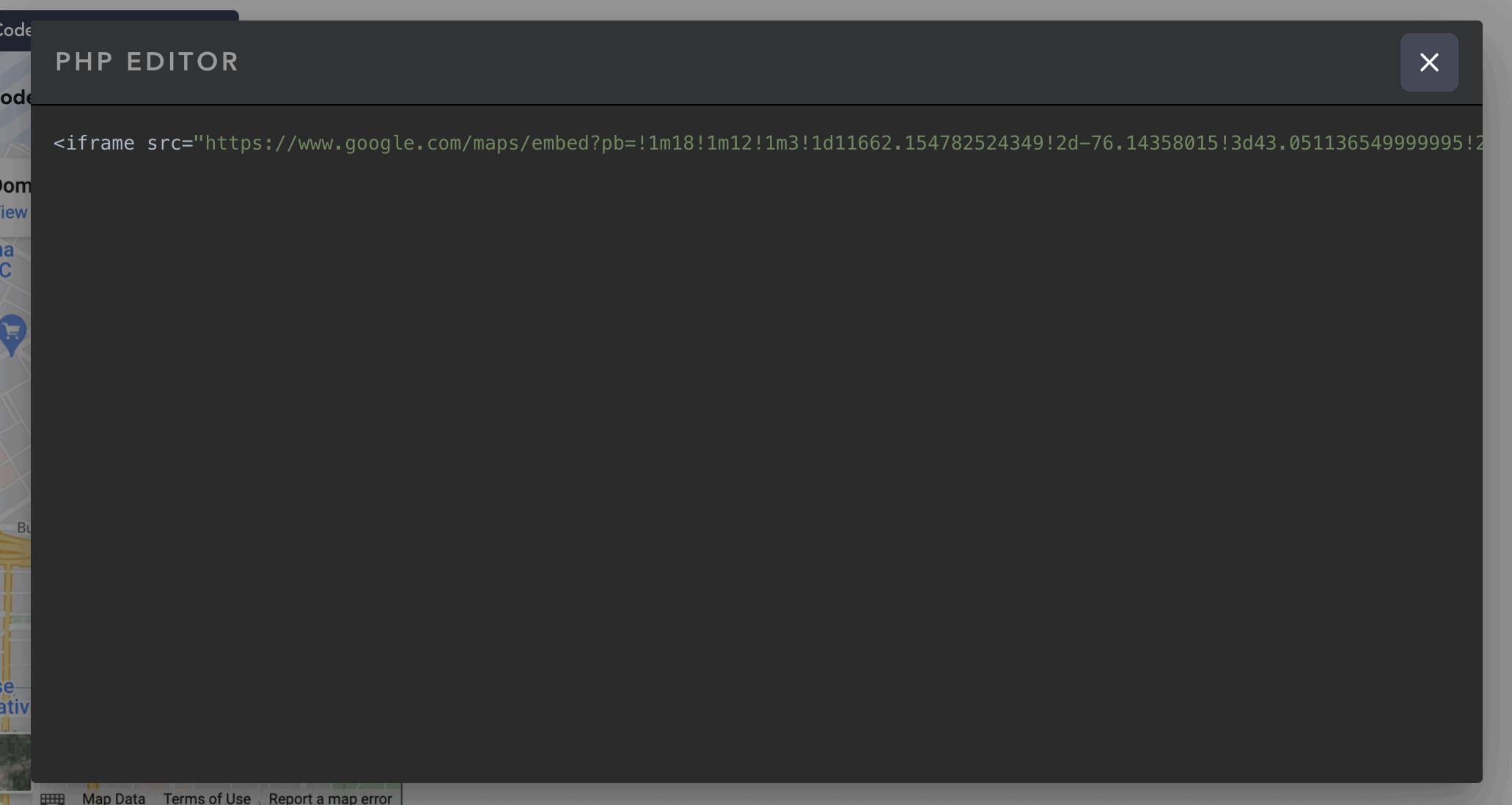
So, go ahead and click this block. Then, type the following code (this is an example location):
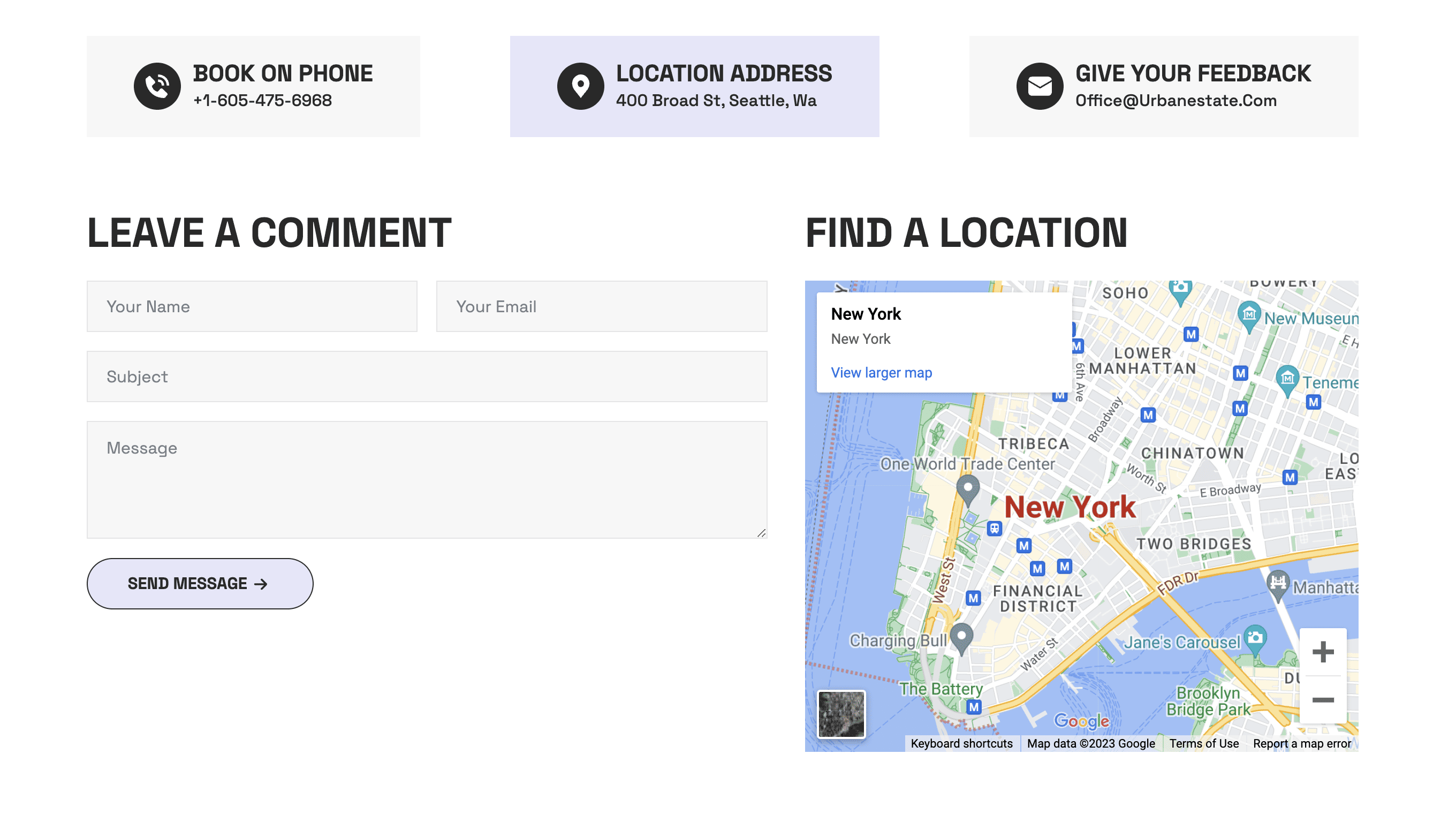
<iframe src="https://www.google.com/maps/embed?pb=!1m18!1m12!1m3!1d11662.154782524349!2d-76.14358015!3d43.051136549999995!2m3!1f0!2f0!3f0!3m2!1i1024!2i768!4f13.1!3m3!1m2!1s0x89d9f3a94e83f78d%3A0x2987e88a6782015c!2sDominick%E2%80%99s%20Market!5e0!3m2!1sen!2sus!4v1690828016506!5m2!1sen!2sus" width="100%" height="450" style="border:0;" allowfullscreen="" loading="lazy" referrerpolicy="no-referrer-when-downgrade"></iframe>
You should now see the map displayed on your page.
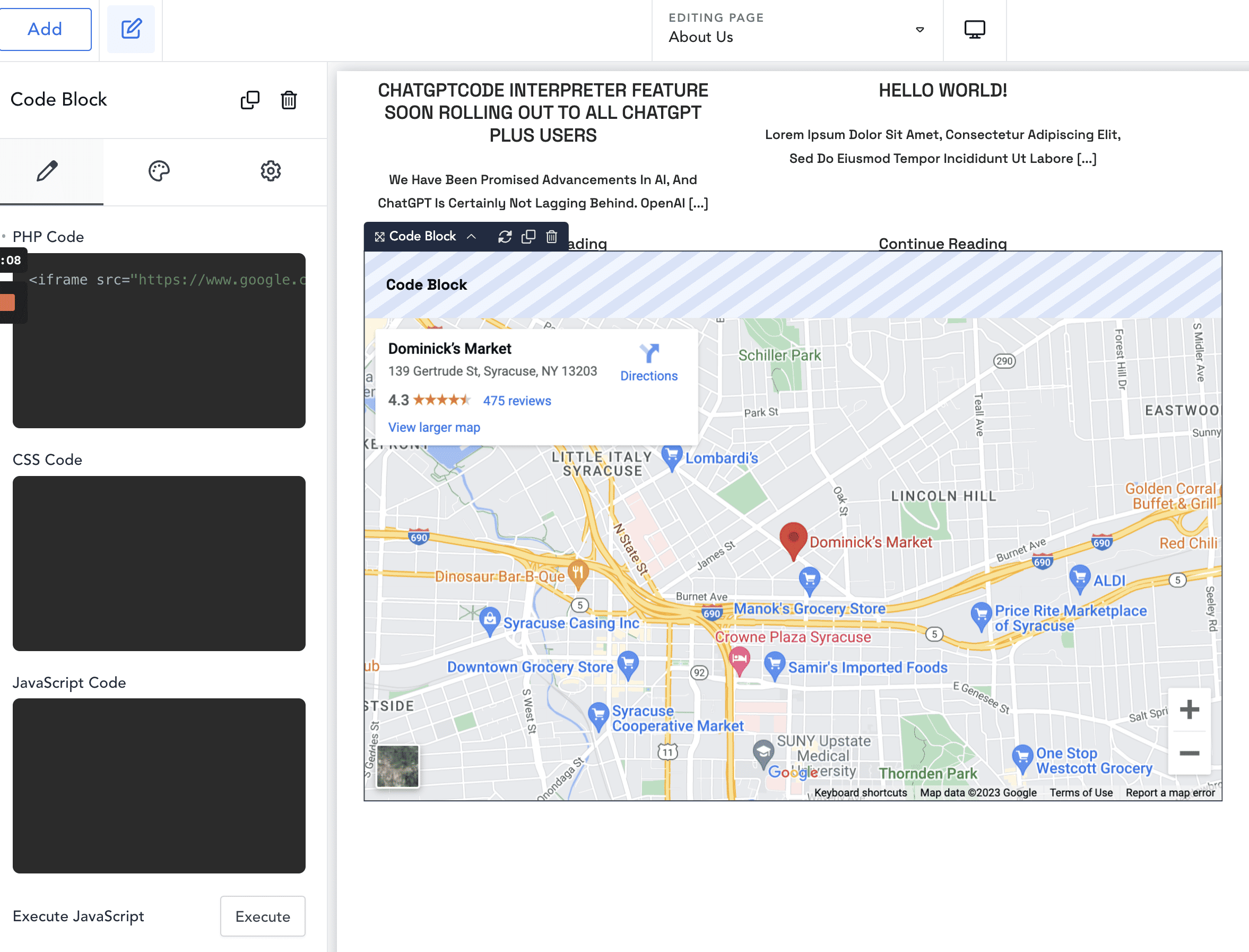
7. If you want to change the width and height of your Google map, simply edit the ‘width’ and ‘height’ attributes on your HTML code. Want it to cover the whole screen? Change width=”1000” to width=”100%”
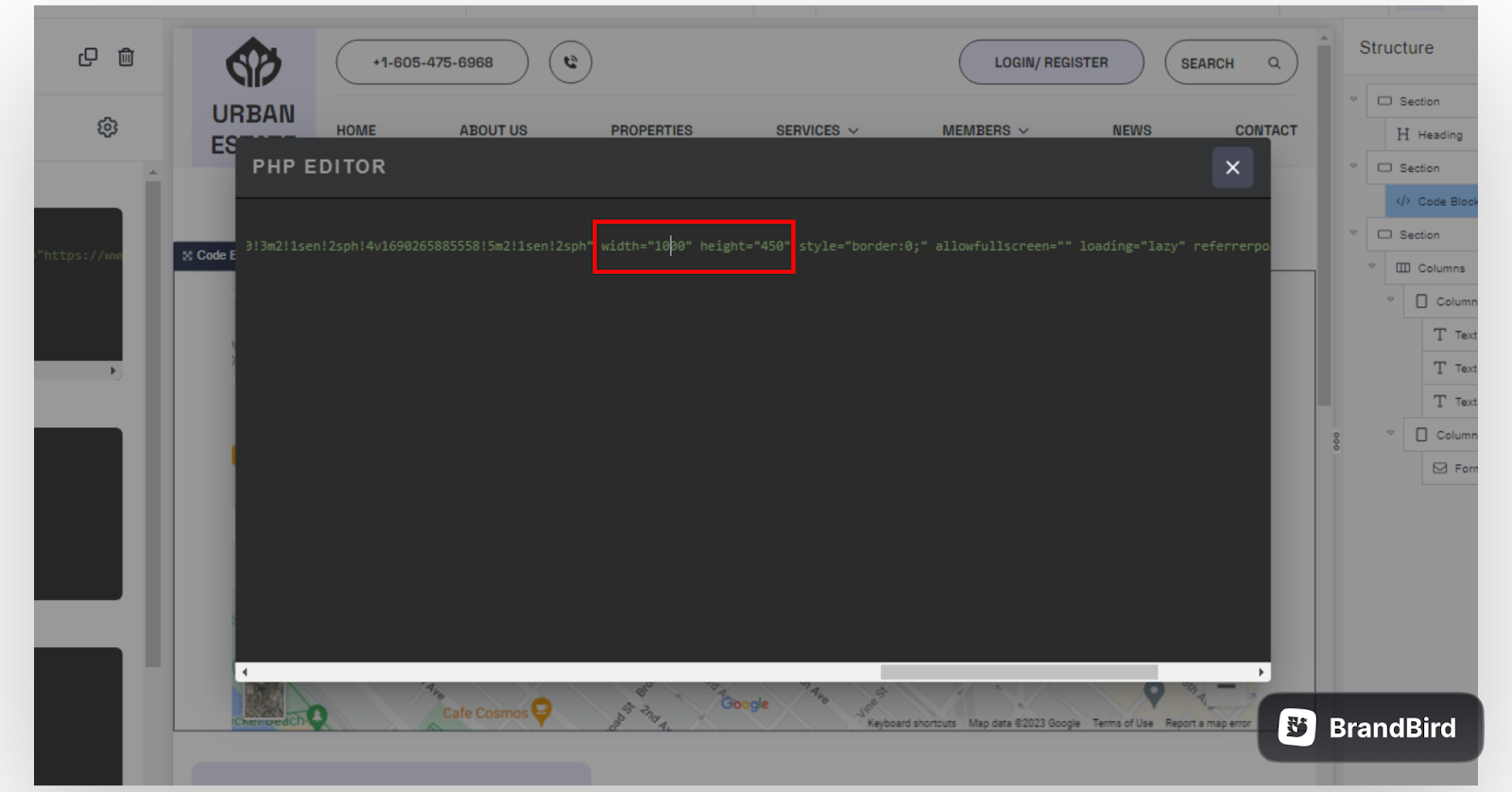
8. Adjust the layout of your section as needed.
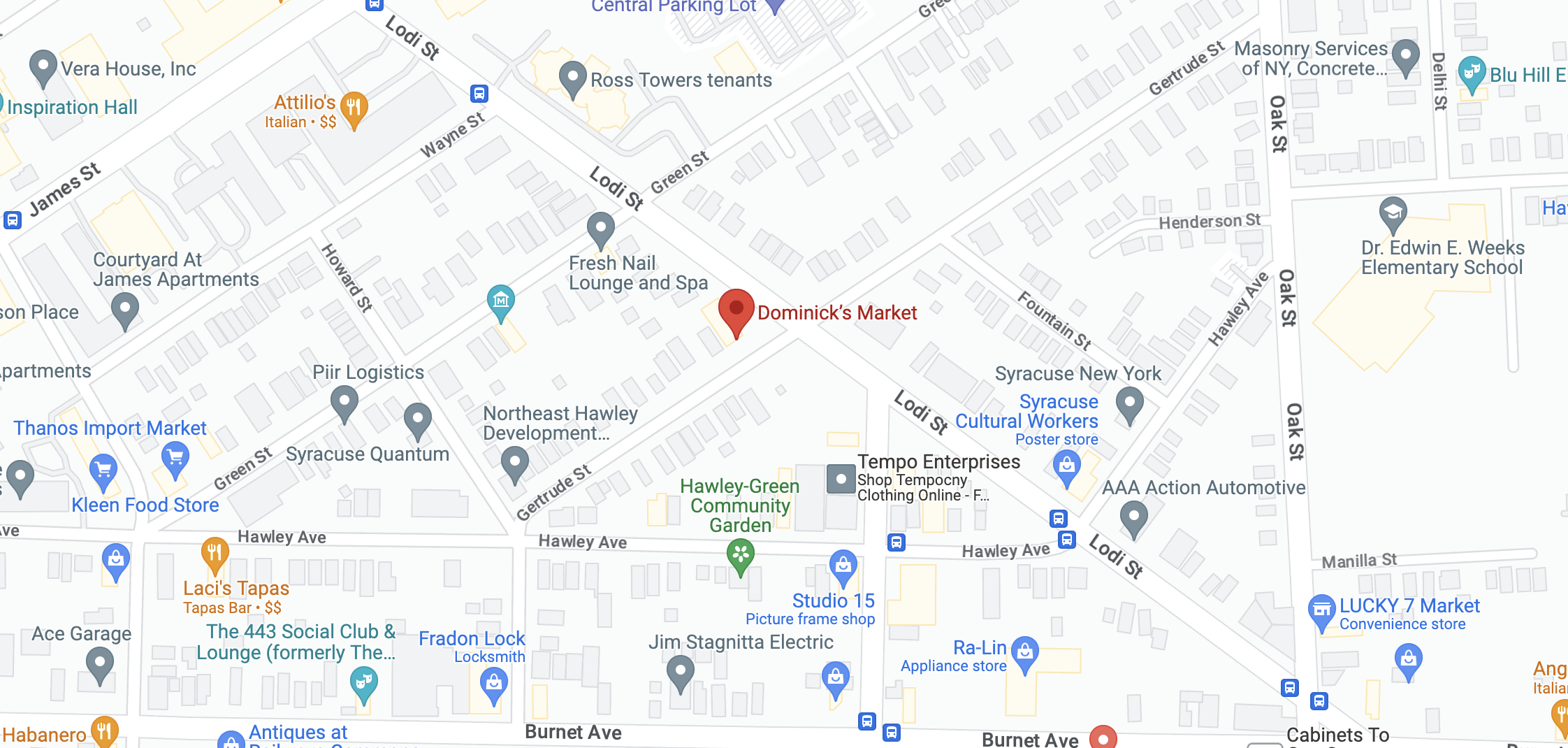
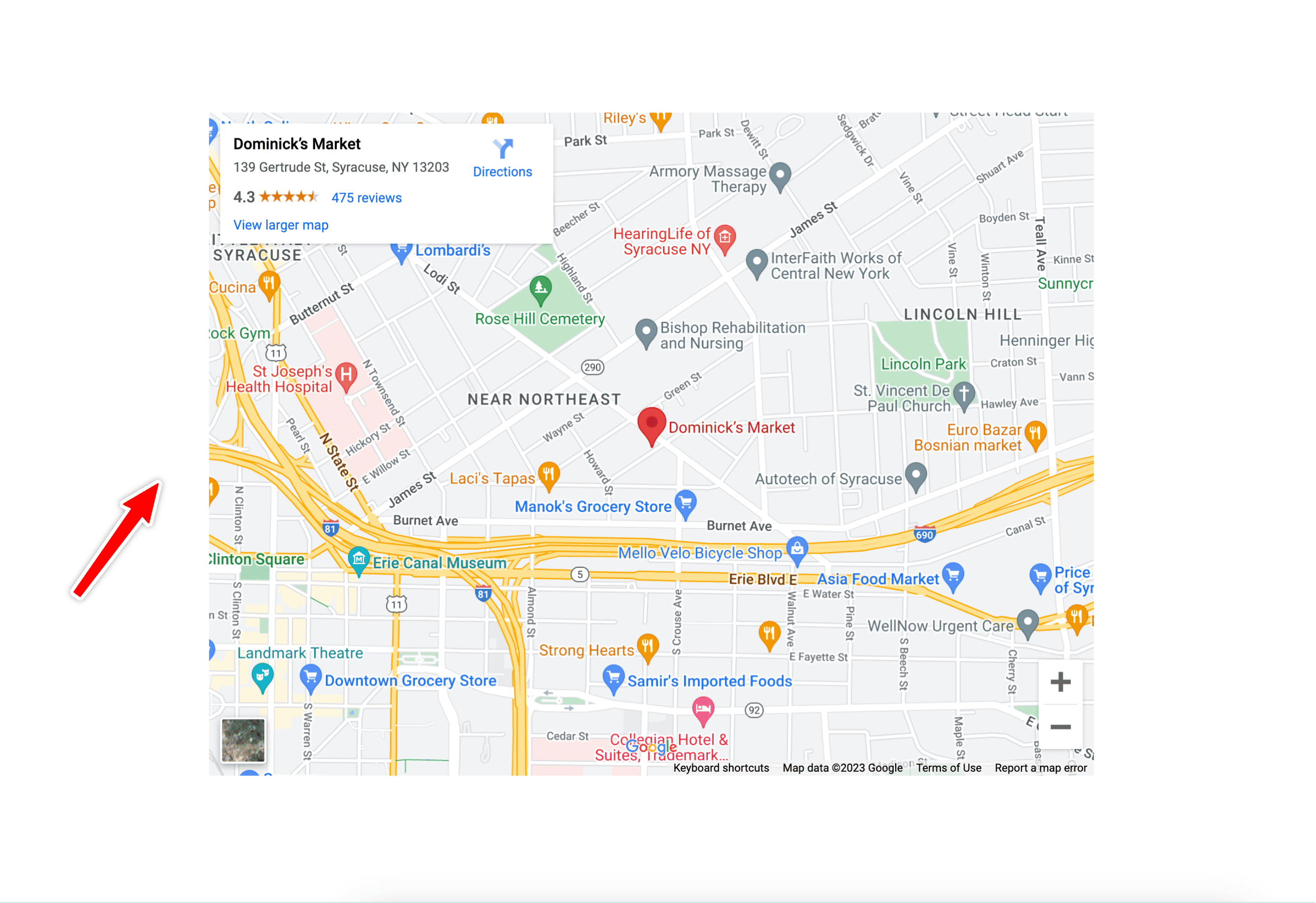
9. Here’s the final look of our contact page embedded with a Google map.
Method 2: Use the Google Map Block in Breakdance
Breakdance offers hundreds of builder elements that you can use to build your site. This includes a Google Map block.
Adding a Google map to your page is a straightforward process. Here’s what you need to do:
1. On your WordPress dashboard, go to ‘Pages.’ Open the page where you want to embed a Google map. In this example, we’ll use the ‘Contact Us’ page.
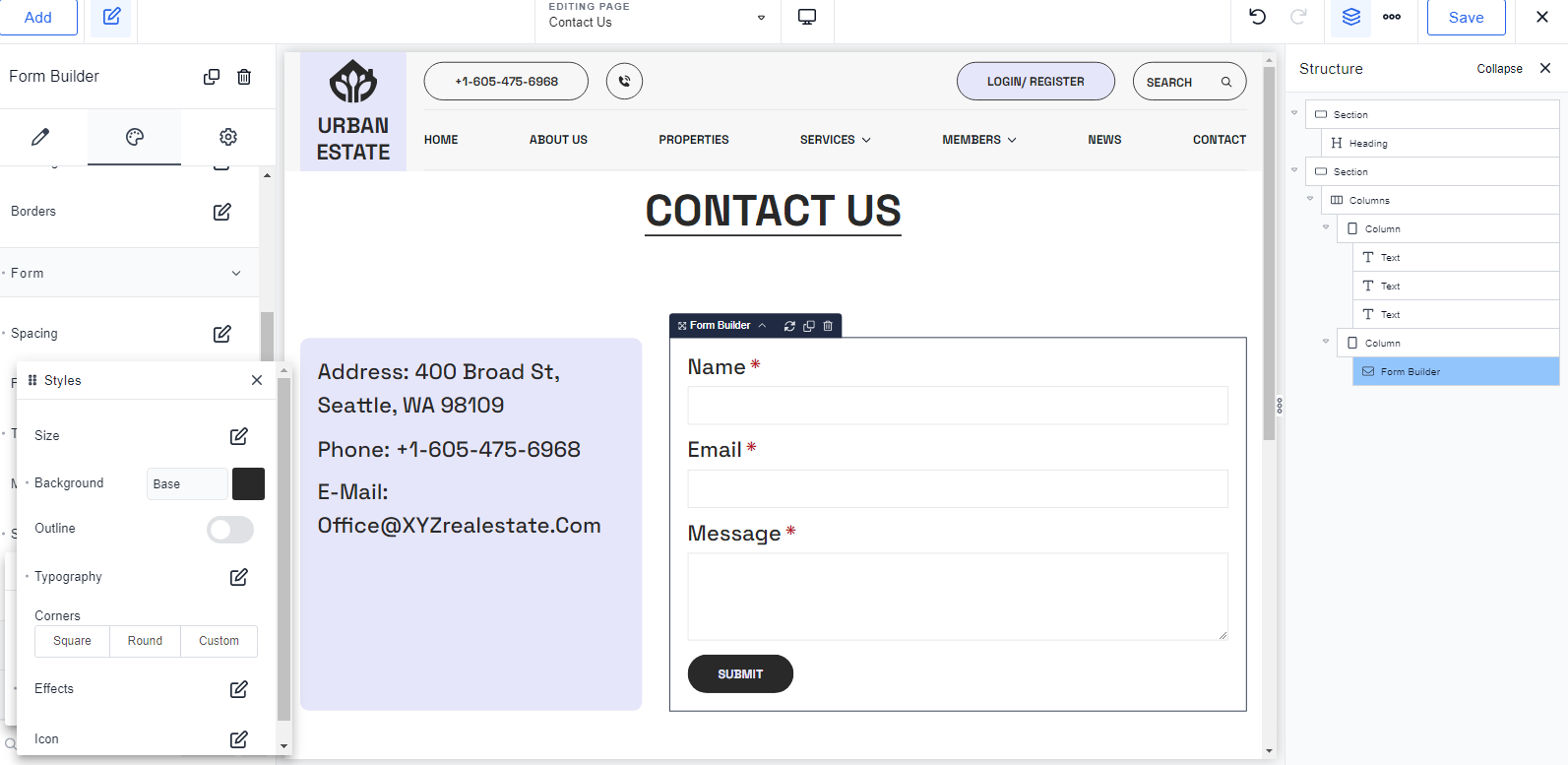
2. Let’s try to add a Google map above our contact info and form. To do that, let’s first add a ‘Section’ to our page.
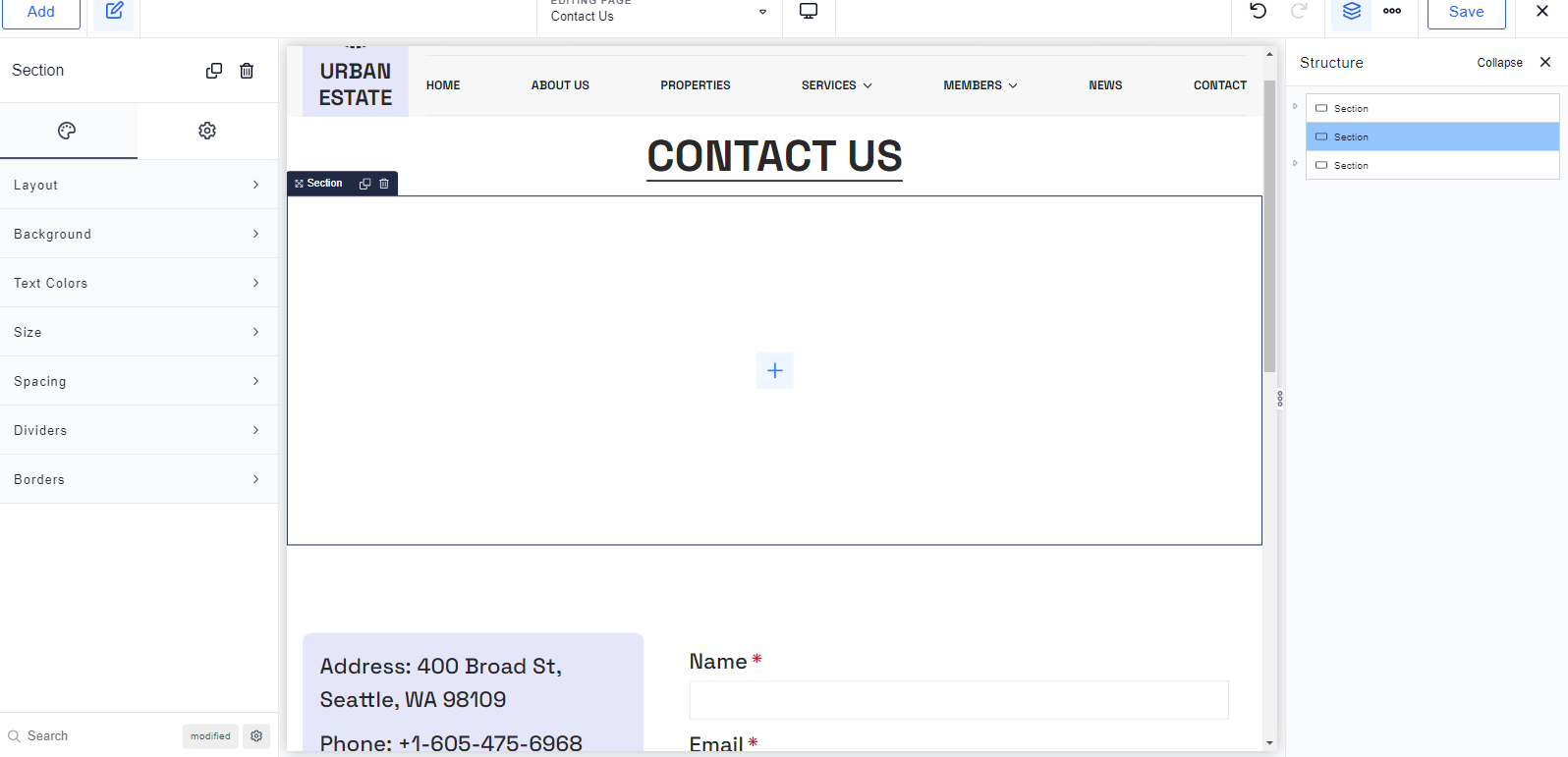
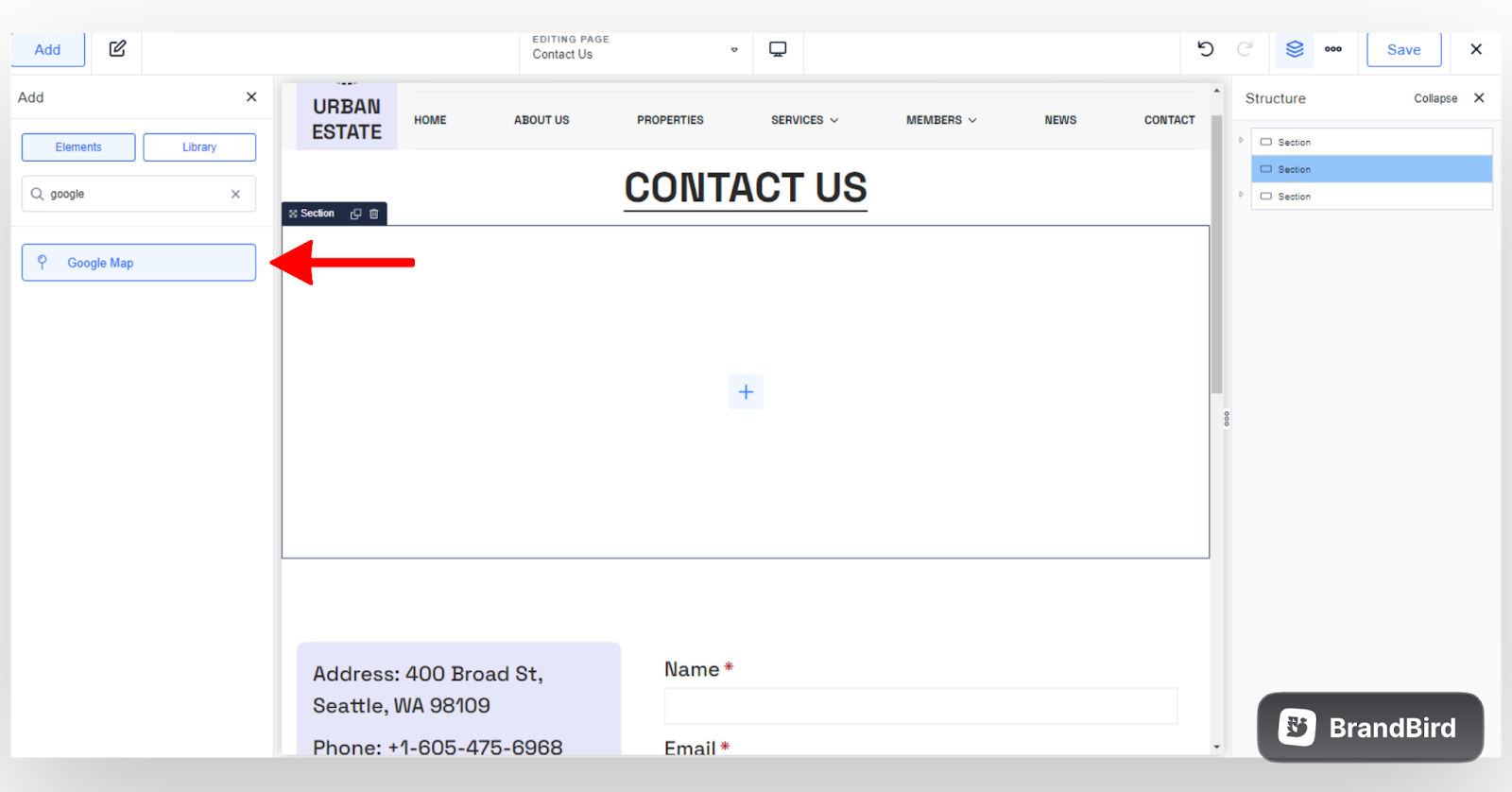
3. On the left-hand side of the editor, search for the ‘Google Map’ block and click it.
4. When you’re trying to add a Google map to your site for the first time, you might encounter an error like the one below.
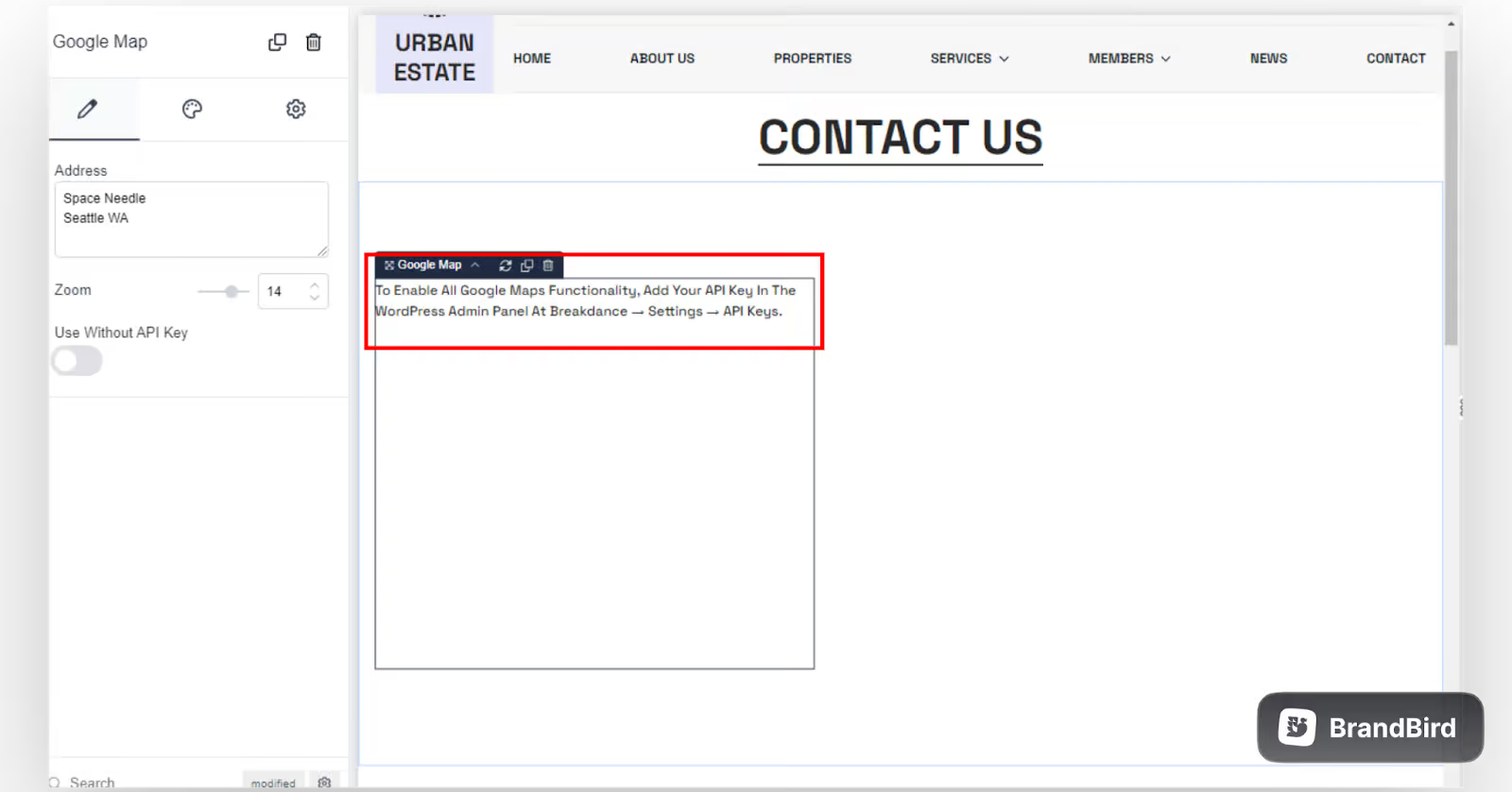
The reason for this is that you need to generate an API key to use the service. An API is just a set of protocols used by software applications to interact with each other. In this case, we want our WordPress site to communicate with the Google Map application.
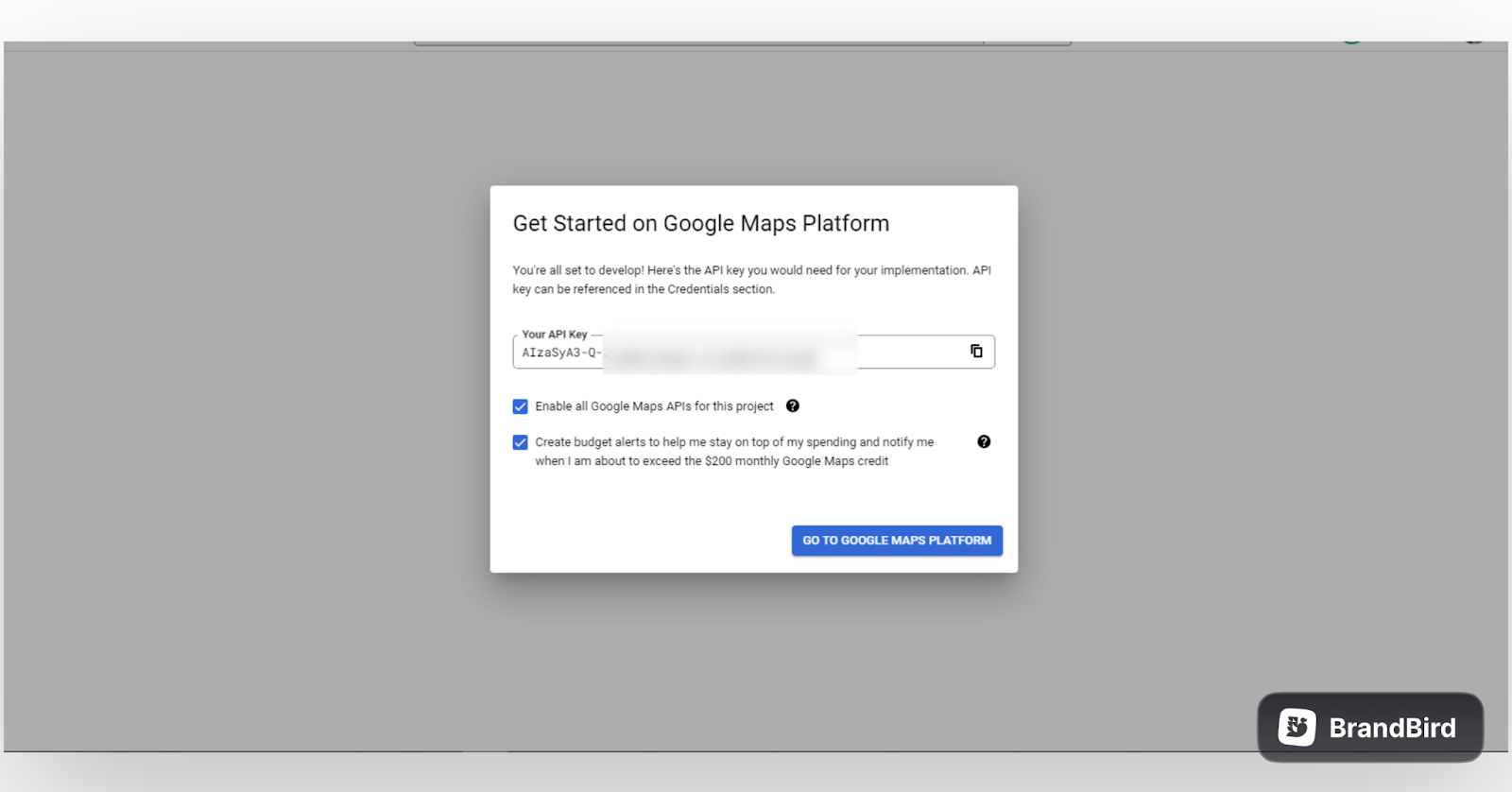
To generate an API key, go to Google Maps Platform. Click ‘Get Started.’ You will be prompted to sign in using your Google account.
Note that you will also be required to provide your billing information to get a free API. As long as you won’t go beyond their $200 free credit per month, you will not be charged.
Once the registration is complete, you should be able to receive your API key. Go ahead and copy this to your clipboard.
On your WordPress dashboard, go to Breakdance > Settings > API keys. Then, paste your API key into the ‘Google Maps API Key’ field. Click ‘Save Changes.’
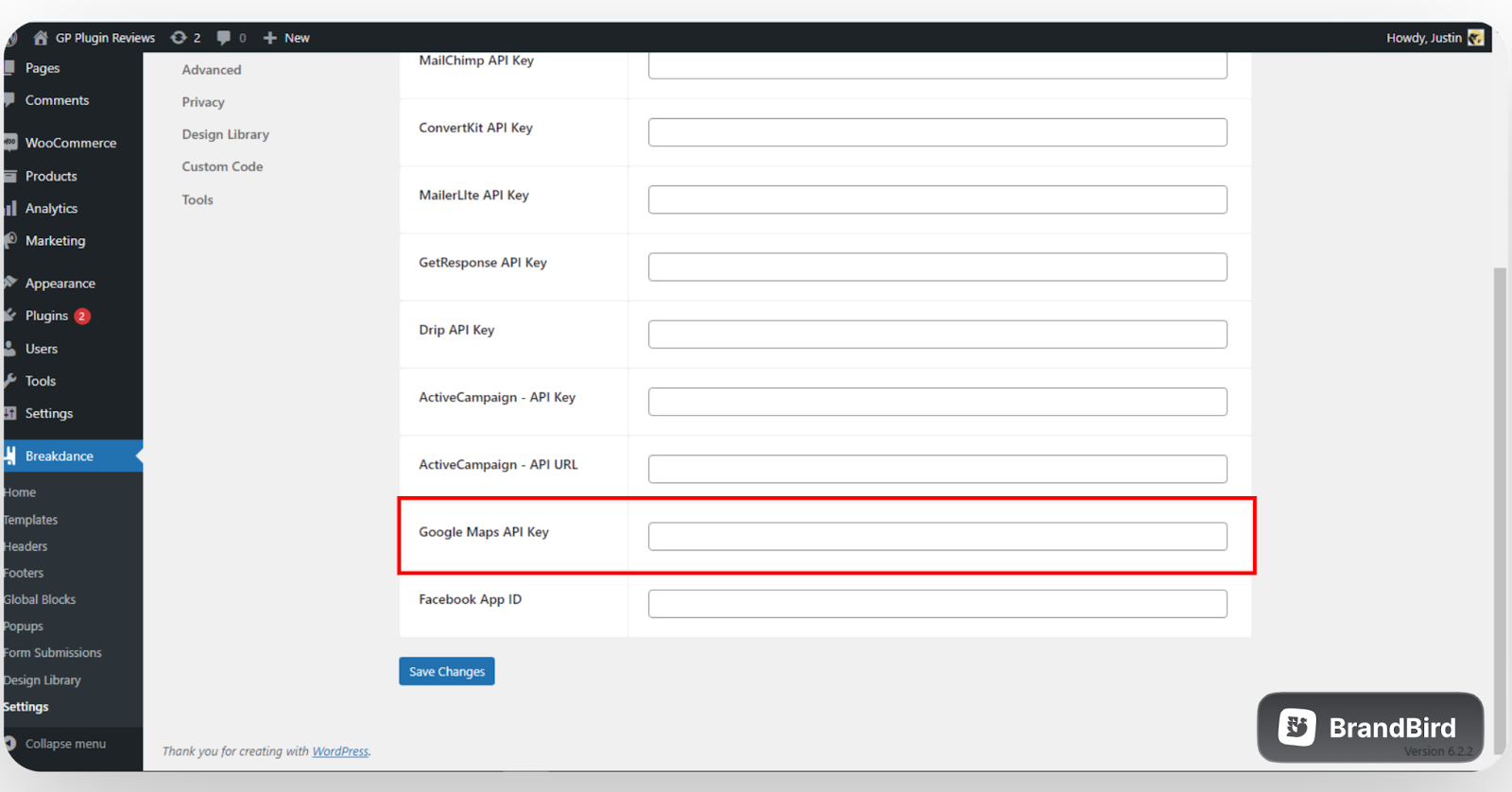
Refresh your page. On your Breakdance editor, you should now see the Google map display.
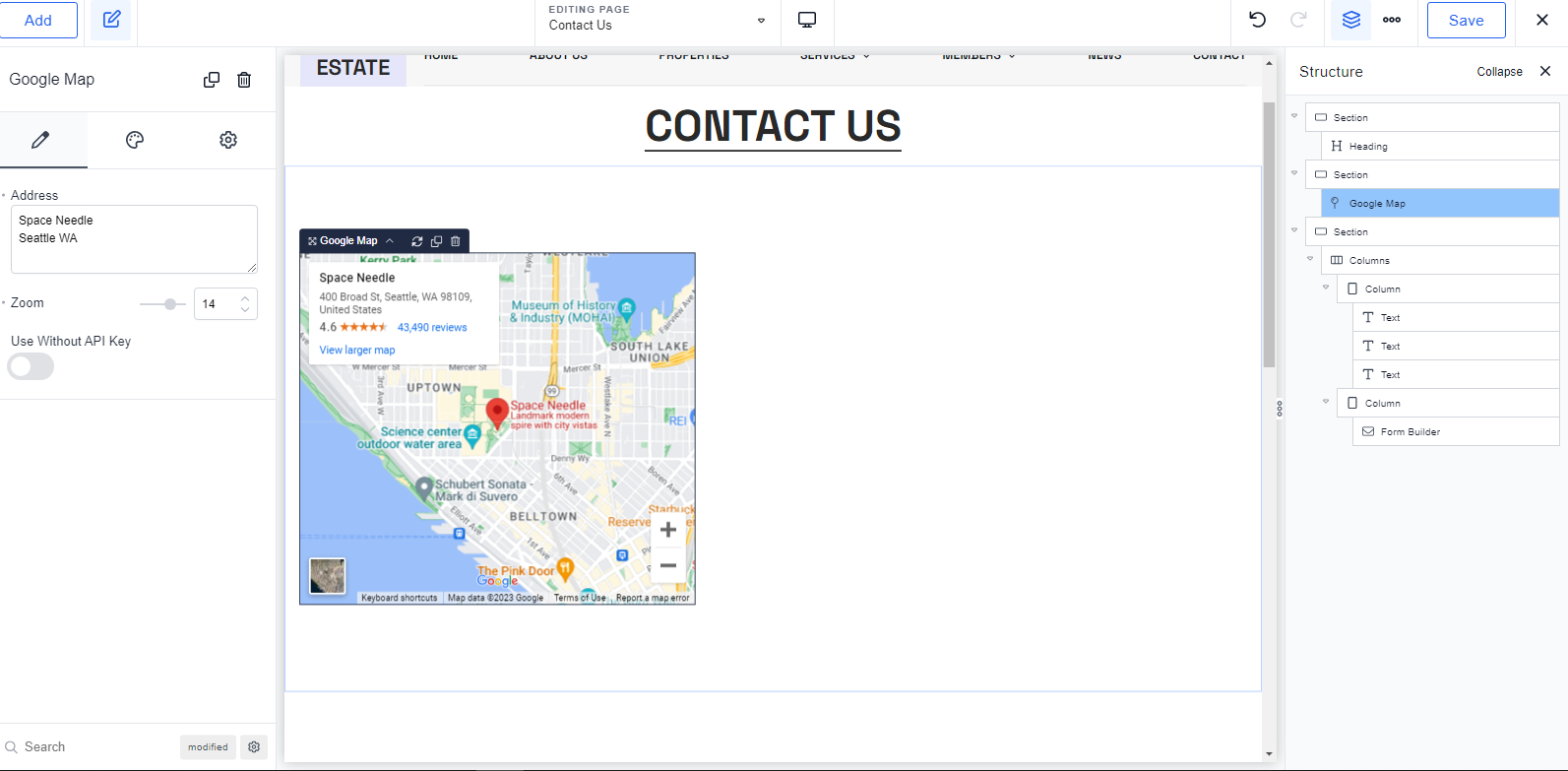
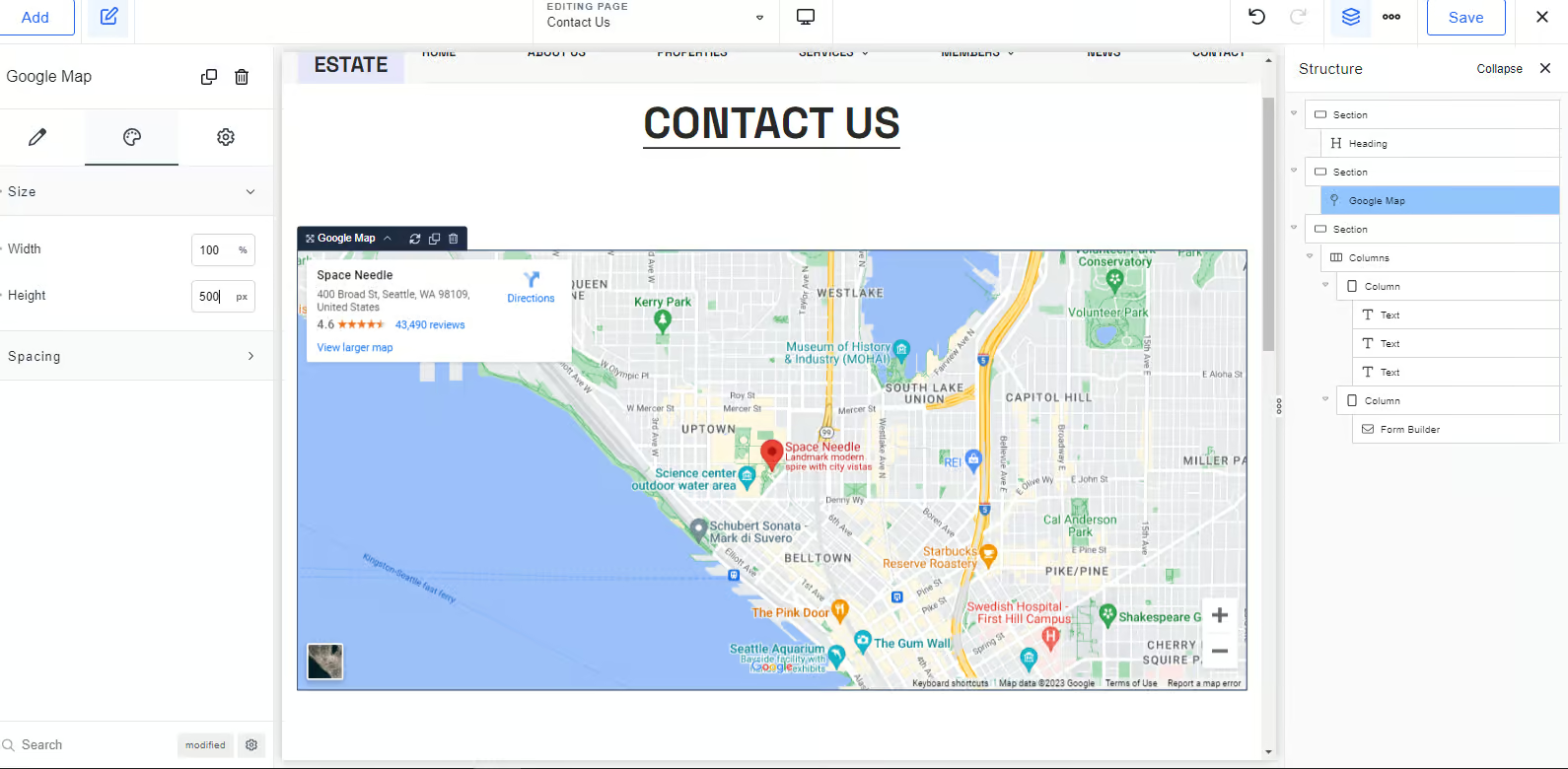
5. Adjust the width and height of your map. You can also adjust the padding size to reduce the space between elements.
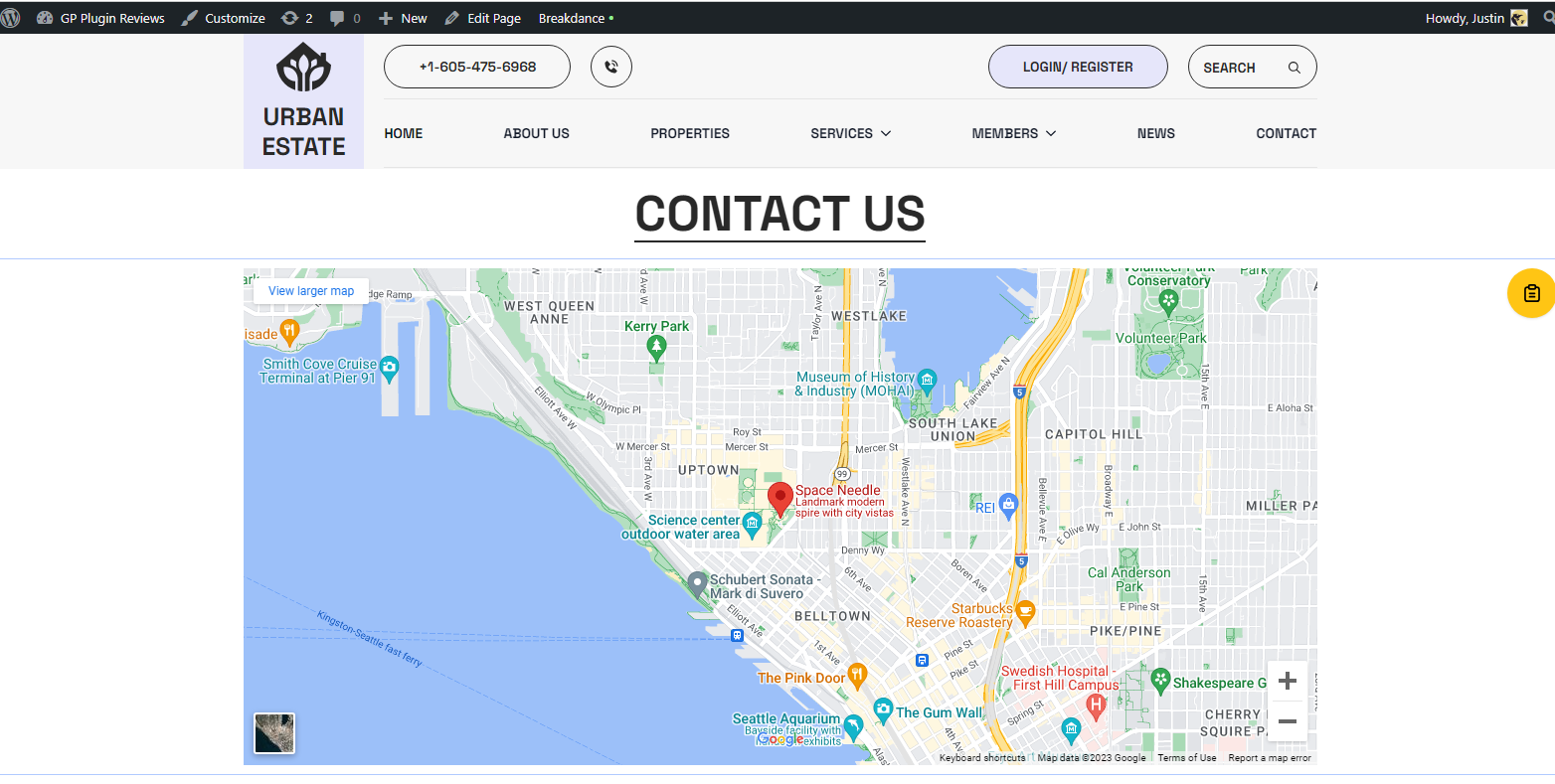
6. Your ‘Contact Us’ page should now look like this.
Troubleshooting Errors
When using a Google Map API key, it is common to encounter an error like this:
“Google maps platform rejected your request. This API project is not authorized to use this API.”
This happens when some APIs needed to access the map are not enabled.
To solve this issue, go to your Google Cloud account. Click ‘Console’ on the top right side of the page.
Then, go to ‘Enabled APIs & Services.’
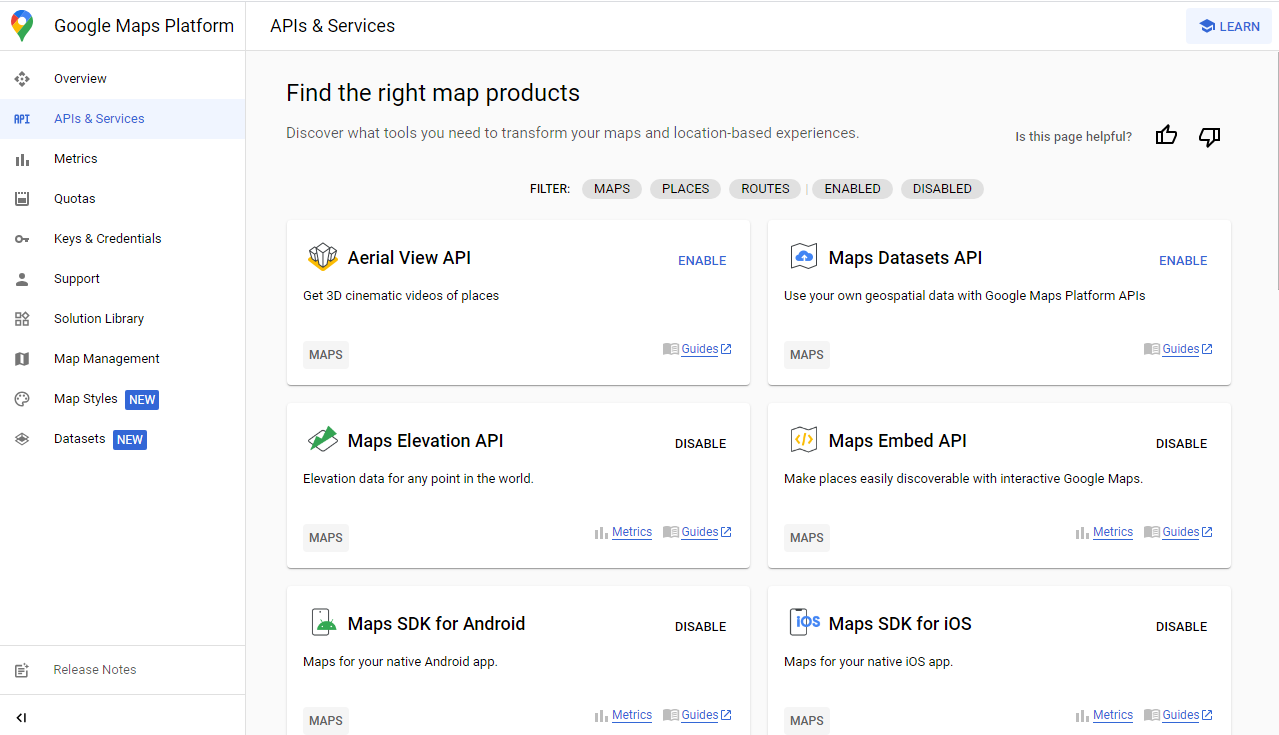
On your API library, make sure that these APIs are enabled:
- Google Maps JavaScript API
- Google Maps Geocoding API
- Google Maps Places API
And that's it! Leave a comment if you have any questions!
Want to Learn Even More?
If you enjoyed this article, subscribe to our free newsletter where we share tips & tricks on how to use tech & AI to grow and optimize your business, career, and life.