Apollo is a popular sales and marketing platform that helps you find and engage with potential leads. It has one of the most updated B2B databases with millions of contacts mainly from the US.
If you’re a staffing business looking for potential clients, Apollo proves invaluable for several reasons:
- It’s a good place to find companies that are actively hiring.
- You can use this platform to research a company’s hiring patterns.
- It helps you gain insights into industries with increasing hiring needs.
Clay offers a seamless integration with Apollo so you can easily enrich your data in a single platform.
Over the next few minutes, I’ll show you how to leverage these tools to boost your lead-generation process. Follow the steps below to set up a search and enrich your list of target companies.

Finding Clients for Your Staffing Business Using Clay
1) Prepare Your List
For this tutorial, I’ve prepared a list of target companies along with their domains.

If you don’t have the website URLs of your target companies, then you’ll need to enrich your list. Check our guide on How to Get Site Domains of a List of Company Names to learn how it’s done.
2) Enrich Company List via Apollo
Let’s use Apollo to pull the relevant information from our target companies.
Right-click your table and choose ‘Add Enrichment.’

Search and click ‘Enrich Company’ by Apollo.io.

In the settings, choose your Apollo API key account. Then, set the company domain as input.
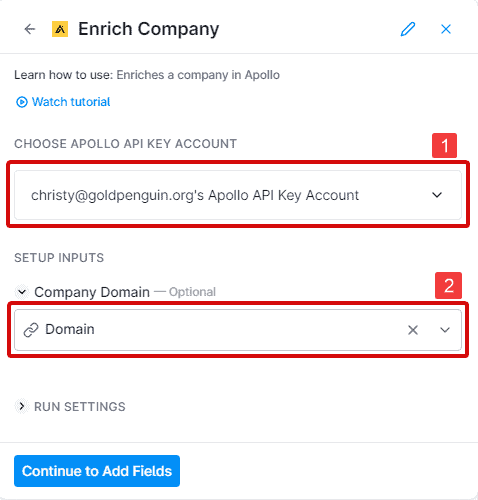
Note: If you don’t have an API key, then you’ll need to create one. Log in to your Apollo account.
Go to your profile settings and click ‘Integrations.’ In the API section, click ‘Connect.’

Head over to the ‘API Keys’ section and copy your API key. If you don’t have one, create a new key and copy.
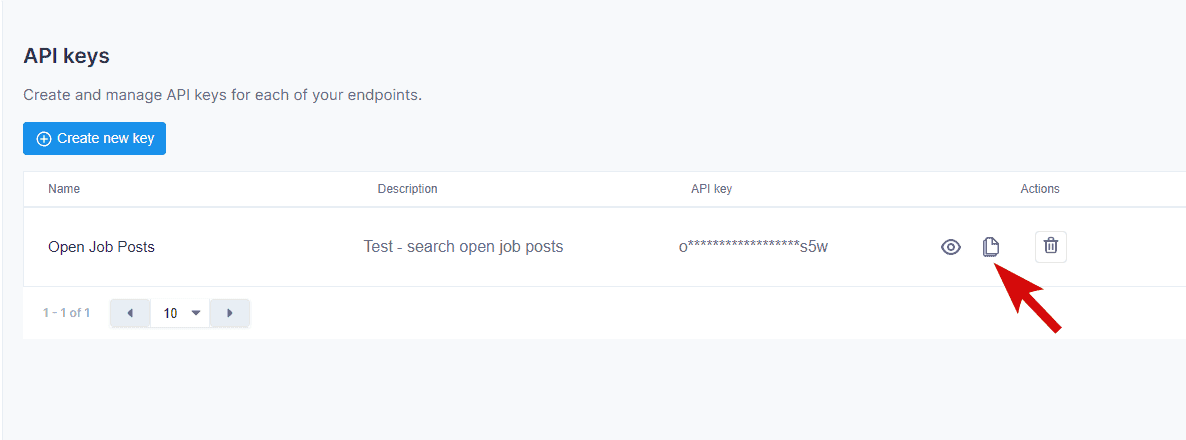
Then, go back to your Clay enrichment setting. Paste your Apollo API key on the designated field to authenticate your account.
After configuring, click ‘Continue to Add Fields.’
Choose the data you wish to append to your table.
For this tutorial, we’ve enabled the ‘Id’ option, as shown below. This is the Apollo organization ID, a unique identifier assigned to a company or organization within the Apollo.io system. We’ll need this information later to find job openings from our list of companies.
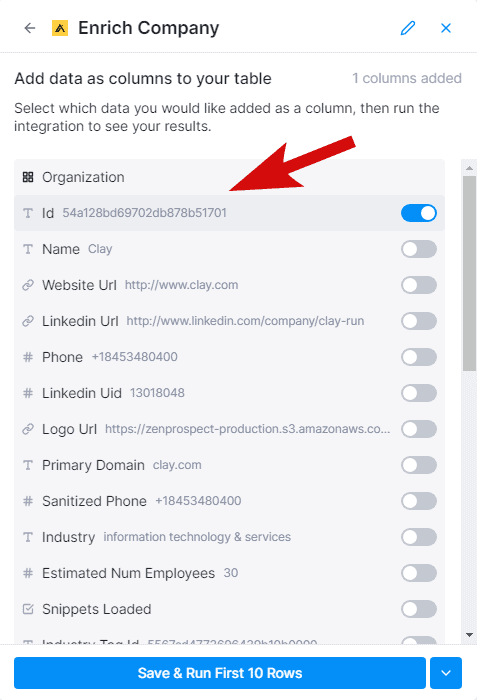
Once you’re done, save the settings and run the integration. Your table will now display new columns containing the enrichment result and Apollo organization ID.

3) Find Open Jobs via Apollo
Once again, let’s enrich our table and search for the ‘Find Open Jobs via Apollo’ tool. Click it to open the settings window.

Next, select your Apollo API key account. Then, enter the Apollo organization ID under the ‘Company ID’ input field.
To narrow down your search, enter the relevant keywords in the ‘Job Search Terms’ field. Let’s say we’re interested in finding job openings for the executive assistant position. We’ll need to enter these keywords, along with related terms, into this field.

Click ‘Continue to Add Fields.’
Then, select which data you want to add to your table. Here, we’ll choose the job title, city, and country.

Save and run the integration.
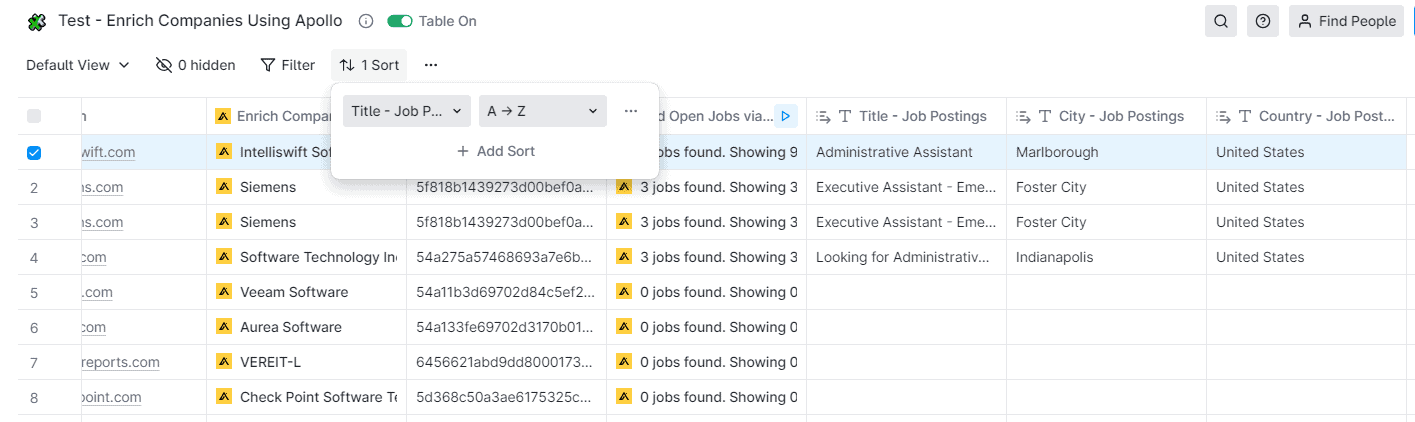
Check your table. It should now display the job openings, the city location of the company, and the country.

Note: Only companies with job openings for our target roles will show results. So, let’s sort our table to see these results at the top.
4) Find Company’s Decision Makers
We now have the details about our target companies and their job openings. The next step is to find a company representative to contact.
Again, add enrichment to your table. Look for the ‘Find Contacts at Company’ enrichment tool and select it.

In the ‘Company Identifier’ input field, enter the company’s LinkedIn URL.
Then, enter the job titles of the people you want to contact. In this case, you can use one or all of the following keywords:
- Human Resources Director
- Talent Acquisition Director
- Human Resources Manager
- Talent Acquisition Manager
- HR Business Partner
- Head of Recruitment
- Sales Development Lead

Once you’re done, click on ‘Continue to Add Fields.’ Then, add the following data to your table:
- Name
- Title
- LinkedIn profile

Save and run the integration.
Note: You might get multiple profile results for a company. You can move these to a new table and enrich them later. By default, Clay shows the first result on your table, as shown below.

4) Extract Work Emails Using the Waterfall Method
To find the work emails of our target leads, we’re going to use the ‘Waterfall’ method.
So, let’s add an enrichment and select this option from the pop-up. Then, choose ‘Work Email.’
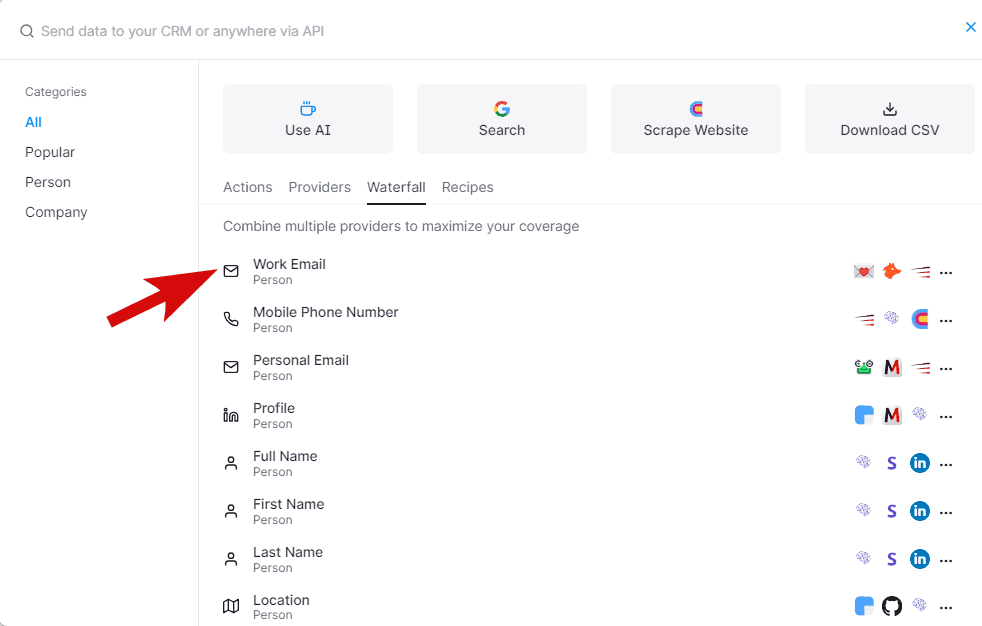
Clay provides several options to fetch email addresses. In this guide, we’re going to stick with the default options: Clay Enrichments, Datagma, and Hunter.

Next, enter the contact’s name and company domain in the input fields.
Finally, use Debounce to validate all the emails collected.
Then, click save and run.
Your table should now have the email addresses of HR or Talent Managers.

And That’s It!
With the contact details at hand, you’re now set to pitch to your target clients.
If you need to automate your cold email strategy, Clay can help with that, too. We’ve written separate tutorials on how you can use Clay’s AI tool for crafting compelling emails.
Interested? Then check out these tutorials:
- Add Personalized City/ Location Images in Emails With Clay
- Customize Email First Lines Based on LinkedIn Posts With Clay
- How to Personalize Cold Emails With Location of a Lead Using Clay
If you liked this guide, please do share it or let me know in the comments. Your feedback is highly appreciated and will help us write better articles!
