Looking for your next job?
Perhaps, you’ve tried browsing through different job boards like Glassdoor, Indeed, LinkedIn, and RepVue. Or you've tried checking your email inbox daily to ensure you’re not missing any opportunity.
But what if I tell you there’s an easier way to extract all the information you need at scale? And I’m not talking about building your own job scraper tool. I’m talking about a powerful, no-code tool that automatically creates a spreadsheet of job posting lists in a few clicks.
As the saying goes, ‘Work smarter, not harder!’
In this guide, I’d like to share with you how to use Clay to scrape open job posts and decision makers. Hopefully, this tool can help you with your job hunting or any assignments you’re working on.
Let’s start!

Why Scrape Job Postings?
Keeping track of the latest job openings can be daunting. With millions of job postings every month, it’s almost impossible to gather such a large amount of data without some form of automation.
Clay is a powerful tool that consolidates job postings with a few clicks. Plus, it streamlines the process of collecting information. This can help you save lots of time, whether you’re a job seeker or a recruiter.
Here are some of the benefits of scraping job postings using Clay:
- Automate job notifications to stay ahead in the job market
- Know the most in-demand skills in your industry
- Find hiring companies to pitch your services
- Helps staffing agencies keep their job databases updated
- Helps track open positions of competitor companies
How to Scrape Open Job Posts and Decision Makers Using Clay
1) Scrape Data Using Clay
First, make sure that you have an active account on Clay.
Once you do, you’ll need to install the Clay extension for Google Chrome.

Let's head over to RepVue and look for sales jobs. On the left side of the page, feel free to filter your results by choosing the job types you're interested in.
Then, click the Clay icon on the toolbar. It should automatically scrape the information from your current page.

A table with the scraped data will appear. Either export it as a CSV and then upload it to Clay or simply click ‘Add to Workspace’ to put it straight onto Clay.

In Clay, you should see your table containing the results.
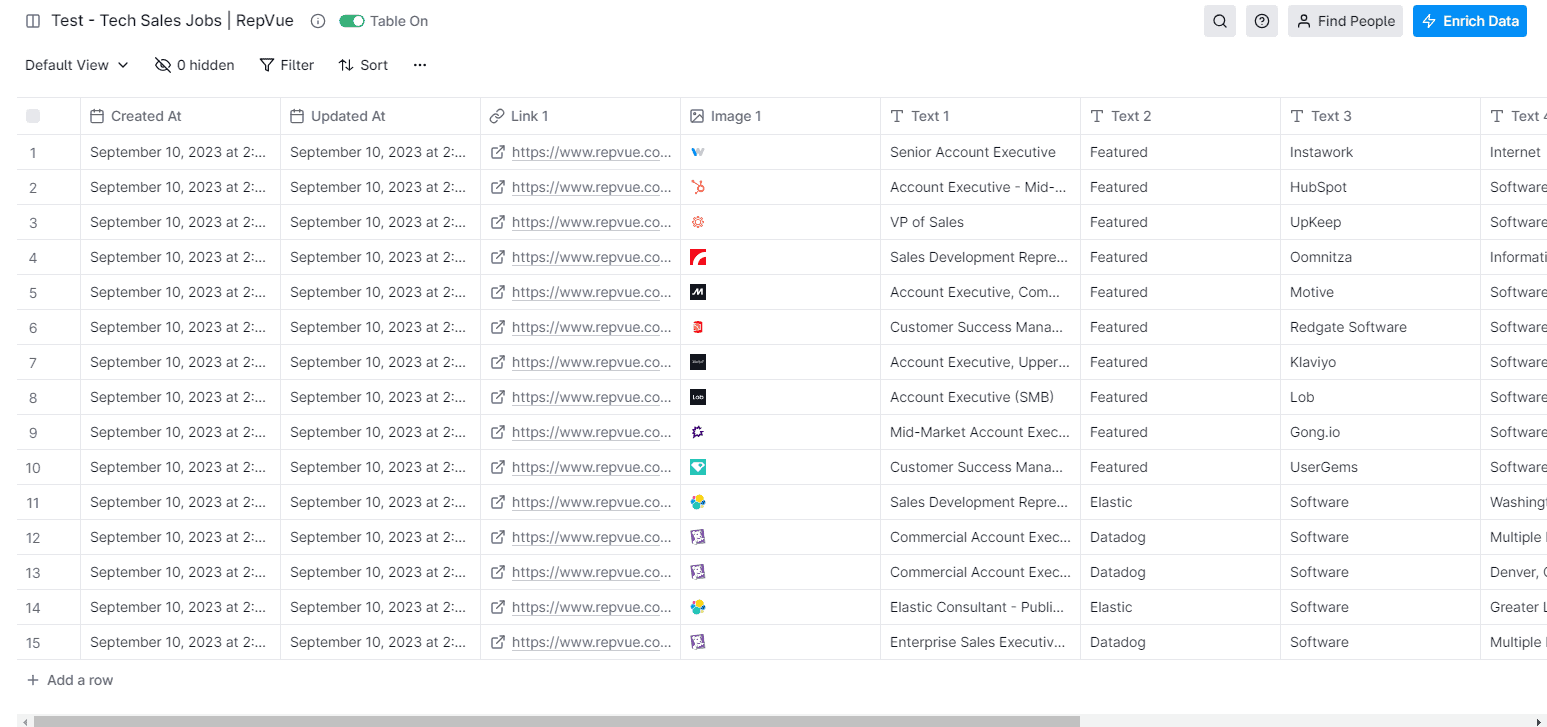
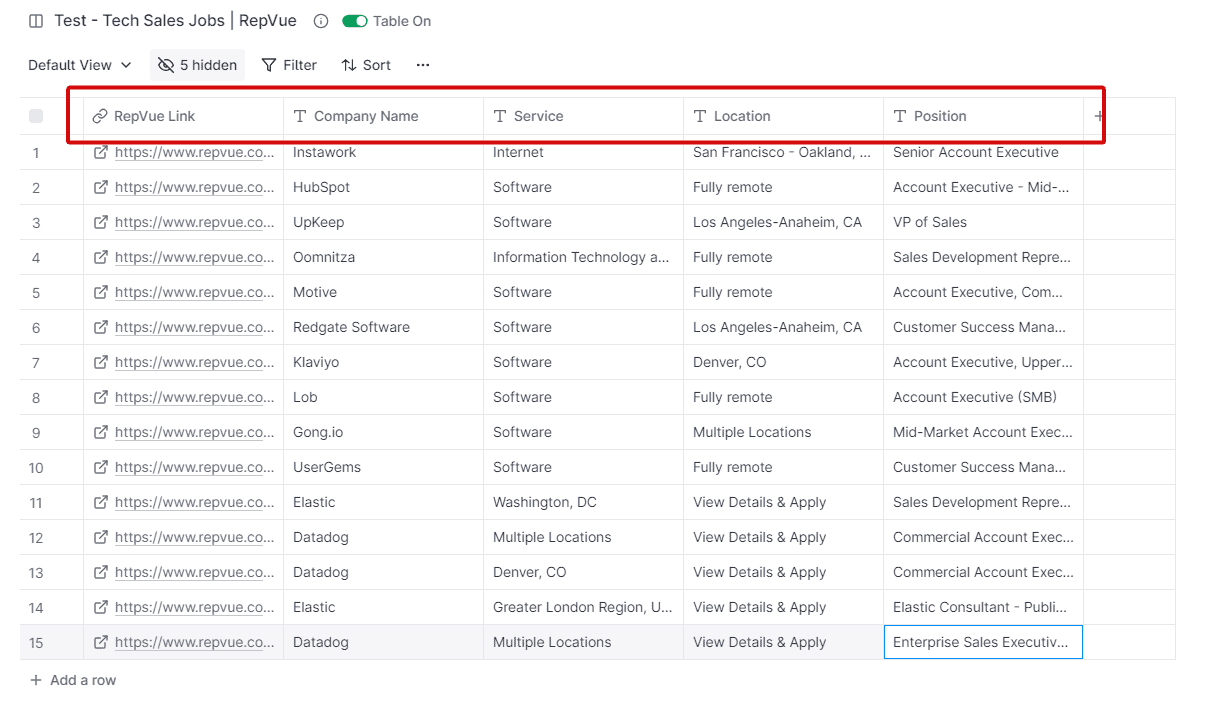
You can hide some of the columns you don’t need or reorder the columns by dragging them. Here, I’ve renamed the columns for easier reference later on.
2) Find Company’s LinkedIn Profile
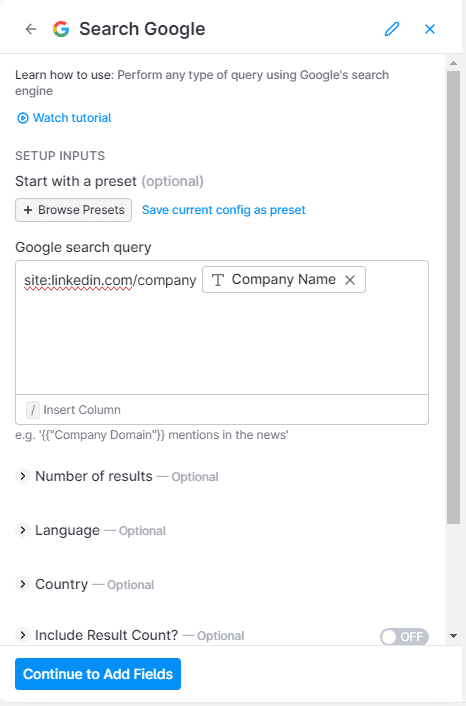
Let’s start by searching for the company's LinkedIn profile. Right-click your table, and select ‘Add Enrichment.’ Choose ‘Search Google’ from the options.

Type the query:
site:linkedin.com/company {insert company name}
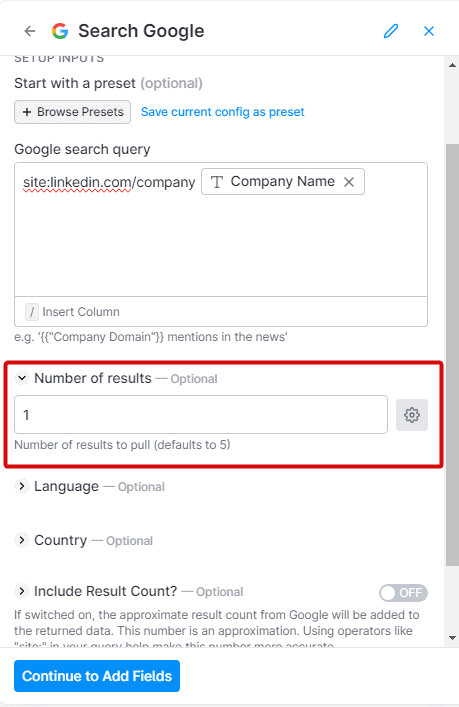
For the ‘Number of results’ field, use the value 1. We only want the top result, and that’s the company's LinkedIn profile.
Next, click ‘Continue to Add Fields.’ From the options, activate the ‘Link’ toggle under ‘Search Results’ to show the company’s LinkedIn URL.

Click save and run. You should now get two new columns: one for the Google search and another for the LinkedIn URL.

3) Find Company’s Decision Makers
Let’s add another enrichment. Look for the ‘Find Contacts at Company’ action.

On the ‘Company Identifier’ field, select the company’s LinkedIn URL.
Enter a list of job titles you’re targeting, separated by commas. For sales roles, example keywords are:
- Human Resources Director
- Talent Acquisition Director
- Human Resources Manager
- Talent Acquisition Manager
- HR Business Partner
- Head of Recruitment
- Sales Development Lead

Once you’re done, click on ‘Continue to Add Fields.’ Activate the toggles for the following data:
- Full Name (for locating work emails later)
- Title
- LinkedIn profile
- First Name (optional, if you want to write personalized follow-up emails later on)
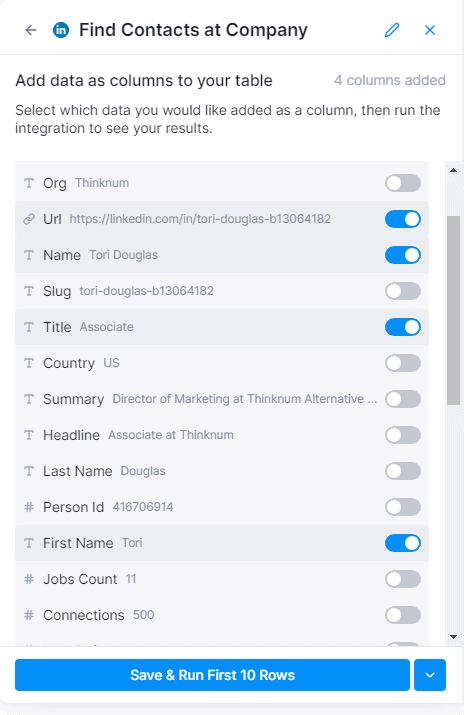
Note that I’ve also added company domains to the table. We’ll need this later to find the work email addresses of our target decision makers. On the settings window, continue to scroll down and look for ‘Experiences.’ Click the ‘View List’ and activate the ‘Company Domain’ toggle.
Click save and run.
Note: Often, you’ll get more than one profile result for each company. You can choose to map these results to a new table and enrich each person later on.
For me, I’d choose to reach out to one of these decision makers at a time and avoid duplicates. To display a single result, click one of the rows under the ‘Find Contacts at Company’ column. Click the first result, hover your mouse over the URL (or any data you want to add), and then click ‘Add as Column.’

Here’s the result of our table.

4) Extract Work Emails Using the Waterfall Method
Once again, let’s enrich our table. Click the ‘Waterfall’ tab from the pop-up and choose ‘Work Email.’

Clay provides several options to fetch email addresses. Here, we’re going to use Clay Enrichments, Datagma, and Hunter.
Next, enter the contact’s name, company name, and company domain in the provided fields.
Use Debounce to validate all the emails collected.

Then, click save and run. Here's the final results:
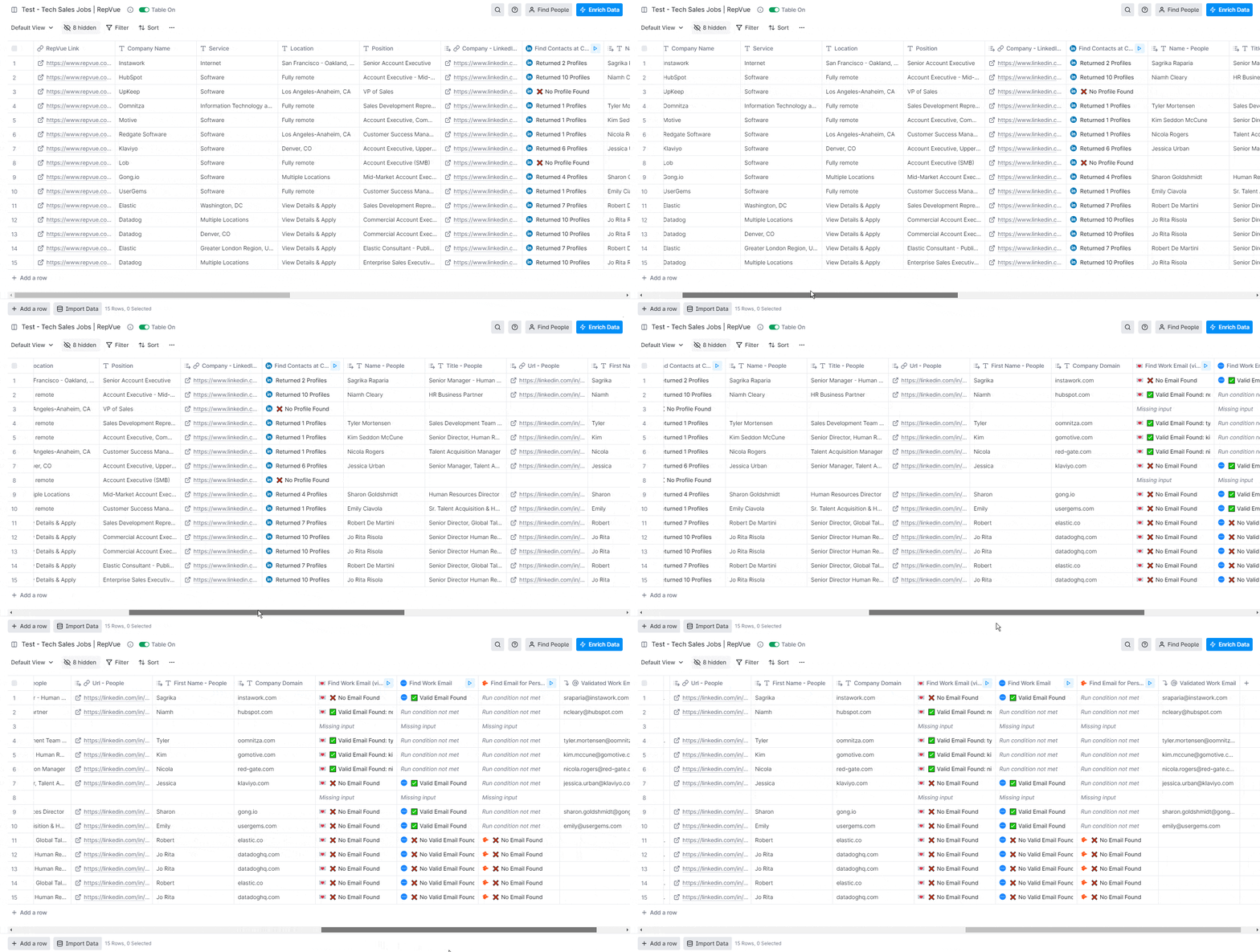
What’s Next?
Now that you have the contact details of your target companies, it’s time to reach out.
Clay integrates ChatGPT to help you do a lot of things, including writing personalized emails. Seamlessly draft personalized emails that are hard to resist, all in a matter of clicks.
We have written separate tutorials on how to do this on Clay. Read these guides for more tips on writing personalized emails using ChatGPT:
- How To Personalize Cold Emails With Location of a Lead Using Clay.com
- Add Personalized City/ Location Images in Emails With Clay
- Customize Email First Lines Based on LinkedIn Posts With Clay
Don’t forget to share your Clay experience in the comments below!
