Cold emailing undeniably remains the best way to build relationships with prospects.
But let’s face it. Getting a response is often not that easy.
Your emails need to resonate without sounding too salesy, or they'll end up in the spam folder.
However, personalizing each email to every prospect can be time-consuming. So, is there a way to write genuine, personalized emails and reach more prospects efficiently?
Absolutely, and AI is the answer.
In this guide, I’ll show you how to leverage ChatGPT to write effective cold emails and reach more people in less time. We’ll focus on using Clay to streamline the process, and then send them using Instantly.

Using AI to Customize Cold Email First Lines
Step 1: Set Up Your Table on Clay
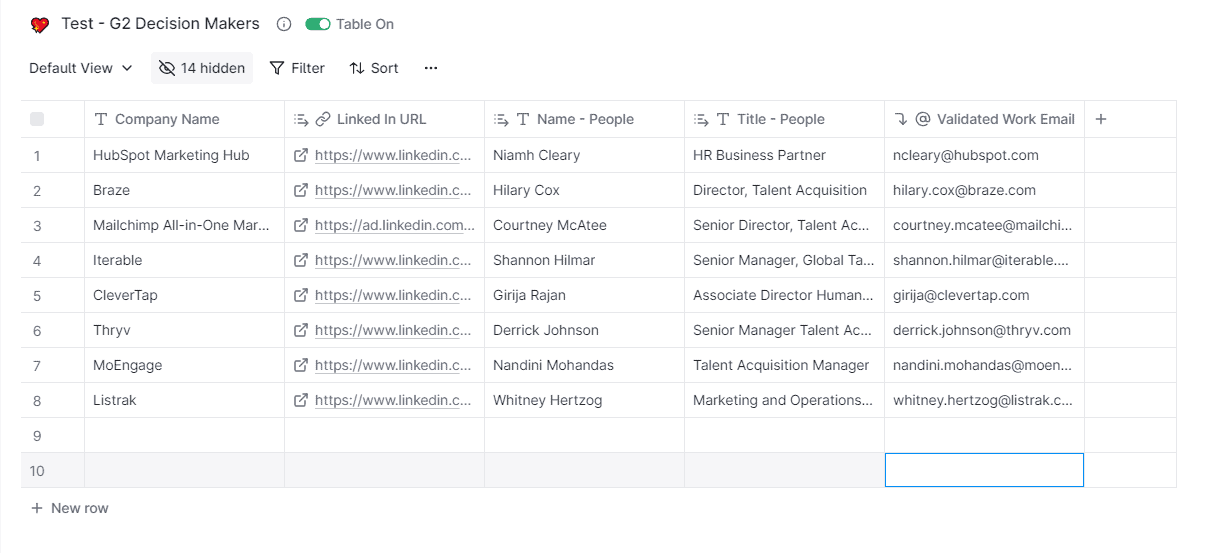
First, you’ll need to log in to your Clay account. On your dashboard, click ‘New Table.’ Then, import a CSV file containing the list of companies you’re interested in.
For this tutorial, I’ve prepared a list of companies with their important details like LinkedIn profiles and contact information of decision-makers.
Step 2: Enrich Company Name
Our goal is to contact decision-makers with customized email first lines based on the company’s LinkedIn description.
So, let’s add an enrichment by clicking on the table. Then, look for the ‘Claygent’ plugin, as shown below.
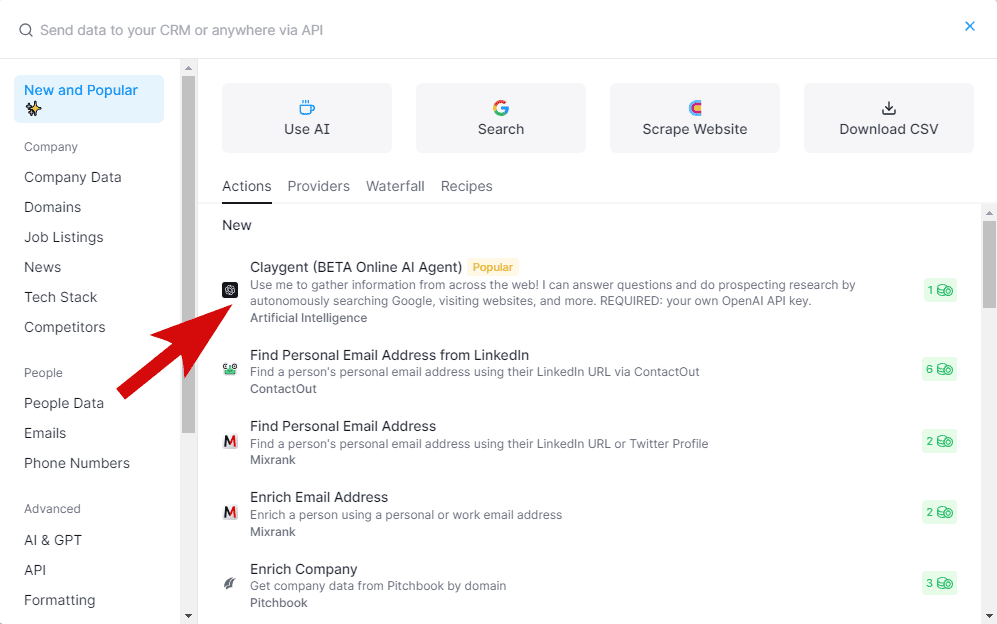
Claygent helps you scour public information about your leads from across the web, including company descriptions.
Now, go ahead and select it to open the settings tab.
Note: Make sure you have an OpenAI API Key. If you don’t have one, I suggest you set up an account on OpenAI Platform. Once logged in, go to your profile settings, click the dropdown menu, and select ‘View API Keys.’
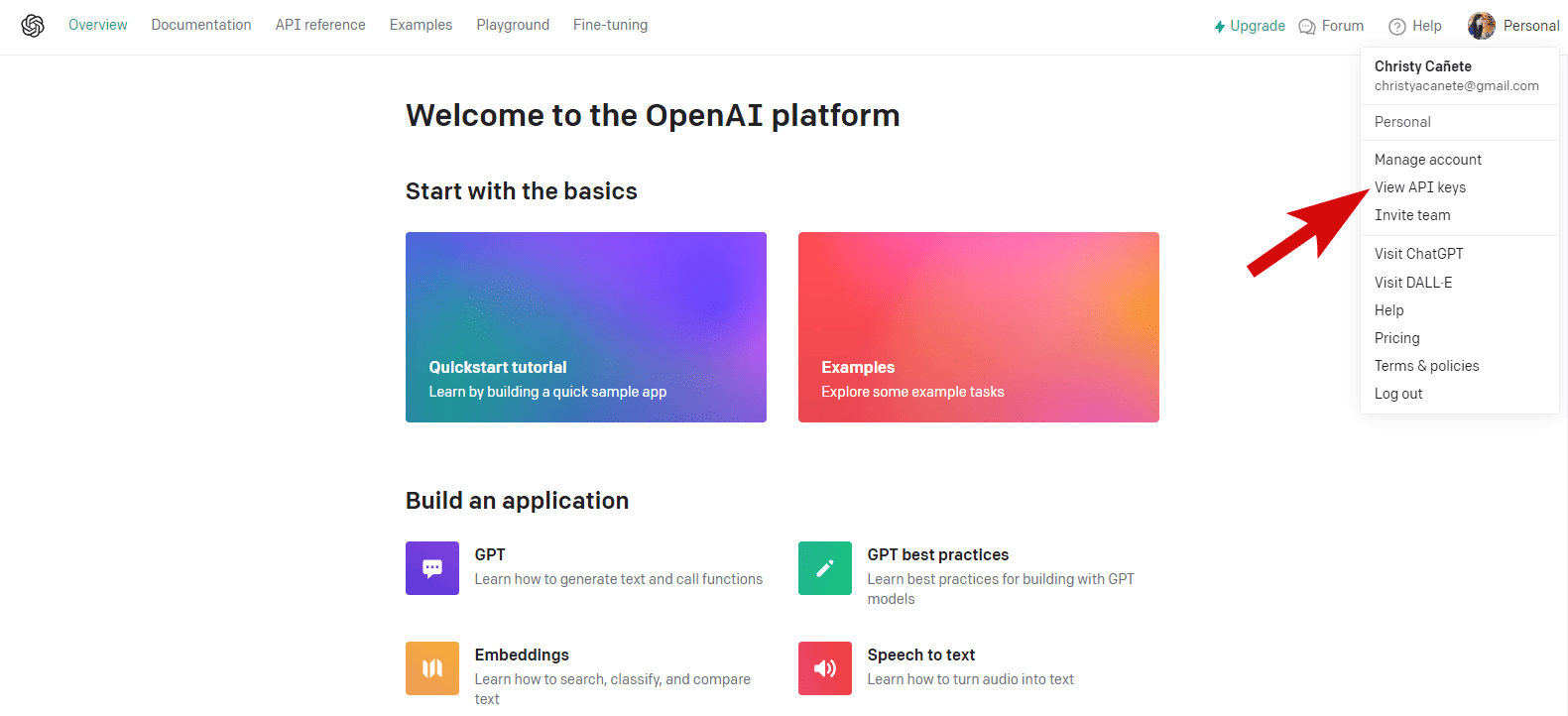
From here, you’ll need to generate the API key and copy it. Then, go back to Clay and paste it to the API field on the integration settings, as shown below.
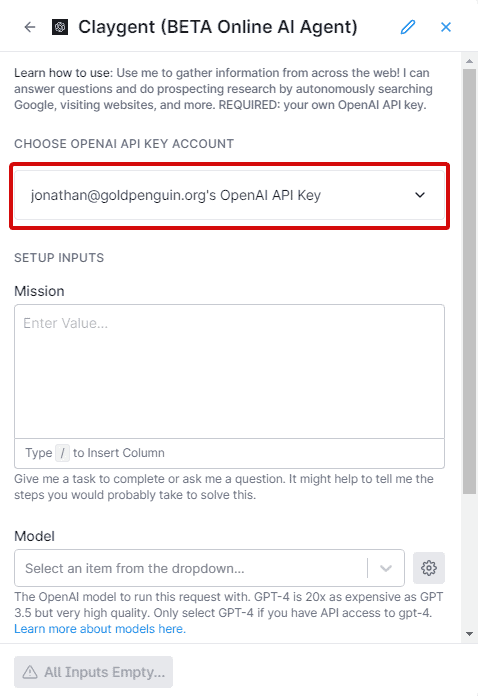
Next, scroll down to the ‘Mission’ text area. Here, you’ll need to prompt ChatGPT to search for the company’s LinkedIn description. Make sure that your instructions are clear and specific to get good results.
Here’s what my prompt looks like:
Find the LinkedIn Description of the company. This should contain the company's objective summarized in a few words.
Here's the company's name: /Company Name
Here's the company's LinkedIn URL: /LinkedIn URL
Now, you'll need to pick a GPT model to process your prompt. I always prefer GPT-4 because it produces a higher quality response than the older model.
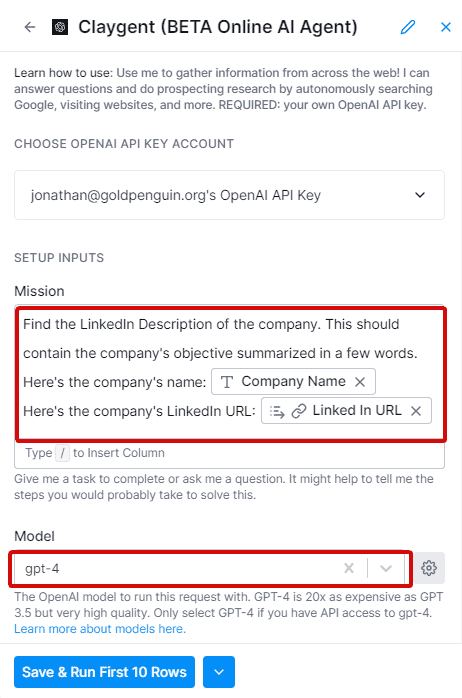
Once you've made your choice and checked your settings, click save and run.
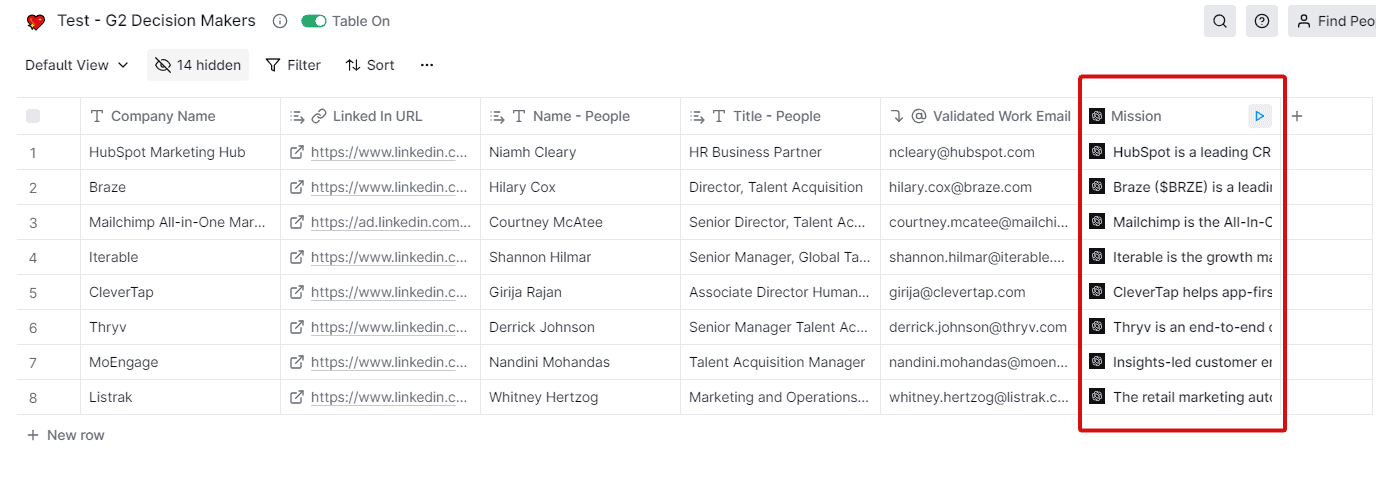
Here’s what our table looks like. Notice that I’ve labeled the new column ‘Mission’ because it contains the mission objective of the company.
Step 3: Write An Effective AI ChatGPT Prompt
Now that we have the company’s description, let’s write a ChatGPT prompt to customize our cold emails.
I honestly find this part a bit tricky. That’s because it needs a bit of creativity and precision to get ChatGPT to generate that perfect email text. After all, no one wants a drawn-out, robotic email – it's a quick way to lose your prospect’s interest.
In this tutorial, it actually took me a few iterations to finally produce a better email.
Here’s how I did it.
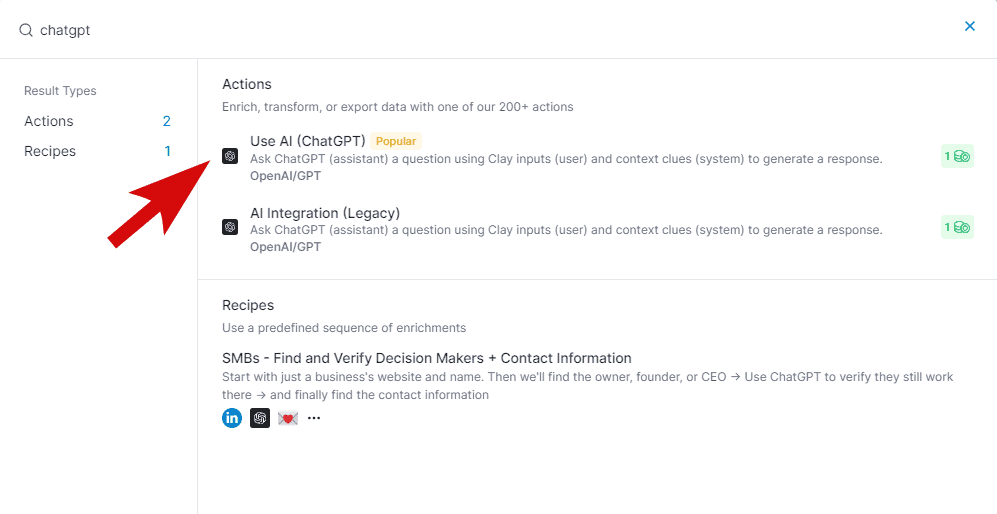
First, I added an enrichment on my table by clicking the ‘Add Column’ and then ‘Enrich Data.’ Under the ‘Enrichments’ tab, I selected ‘Use AI (ChatGPT).’
Then, I typed my AI prompt in the provided text area.
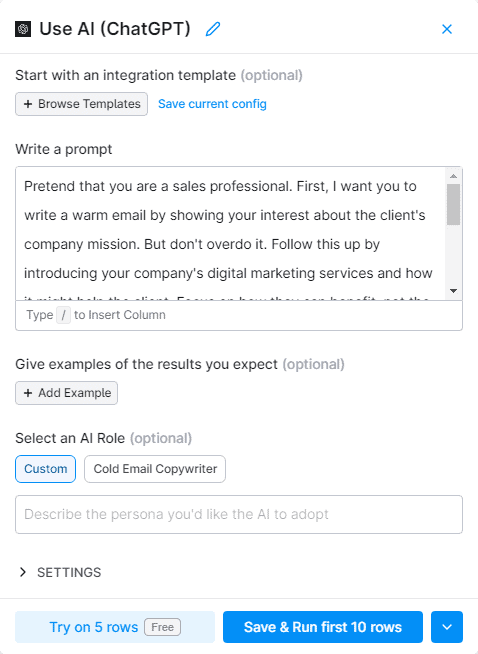
When you first enter your prompt, you might not get good results right away. I noticed that ChatGPT can sometimes give weird responses, especially if your prompt isn’t very detailed. You’ll need to iterate the prompt several times to produce human-like responses.
Writing a good prompt requires practice. Here are a few tips to help you out:
- State what you need. If it’s an email based on your prospect’s company description, mention it in your prompt.
- Your prompt should be very specific. Add as many details as you can, like the information you want to add, the number of words, the contact’s name, etc.
- Specify your inputs. You can add the contact’s name or LinkedIn information. For example, your ChatGPT prompt could include something like this: ‘This is the company’s LinkedIn description: /[input]’
- Describe the output that you’re expecting. For instance, you can tell ChatGPT to use a casual or friendly tone.
For this example, I’ve crafted the following prompt (you can use this as your starting point):
Pretend that you are a sales professional. First, I want you to write a warm email showing your interest in the client's company mission. But don't overdo it. Follow this up by introducing your company's digital marketing services and how they might help the client. Focus on how they can benefit from the services, not the features. Please make it short, around 100 - 150 words. Use a friendly, casual tone when writing the email. Please personalize the email subject based on the company's mission.
The client's name is this: /Name - People
The company mission is this: /Mission
Your name is this: Christy
Once you’re satisfied, click ‘Continue to Add Fields.’ Then, save and run the integration.
You should now see a new column added with the AI-generated text.
Here’s a sample output from ChatGPT:
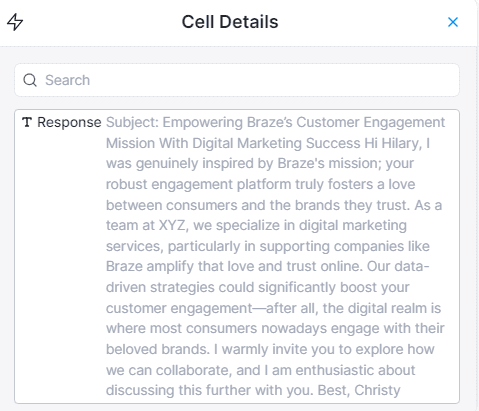
Subject: Empowering Braze’s Customer Engagement Mission With Digital Marketing Success
Hi Hilary,
I was genuinely inspired by Braze's mission; your robust engagement platform truly fosters a love between consumers and the brands they trust.
As a team at XYZ, we specialize in digital marketing services, particularly in supporting companies like Braze amplify that love and trust online. Our data-driven strategies could significantly boost your customer engagement—after all, the digital realm is where most consumers nowadays engage with their beloved brands.
I warmly invite you to explore how we can collaborate, and I am enthusiastic about discussing this further with you.
Best,
Christy
Step 4: Send Your Cold Email to Instantly
Now that you've got your AI-drafted emails, let's send them out with Instantly.
Enrich your table by selecting the ‘Add Lead to Campaign’ integration.
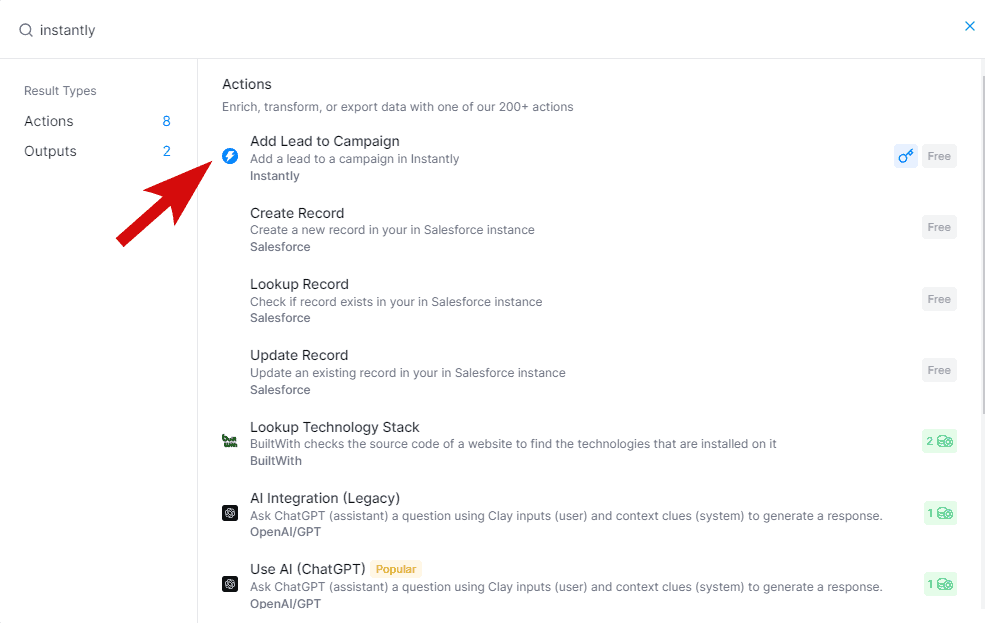
On the settings tab, connect your Instantly account using an API key.
You can get your API by opening the profile settings on your Instantly account. Go to the ‘Integrations’ tab and then click ‘Copy API Key.’

Back in Clay, click ‘Choose Instantly API key Account’ and select ‘Add an account.’ Then, paste in the API key.
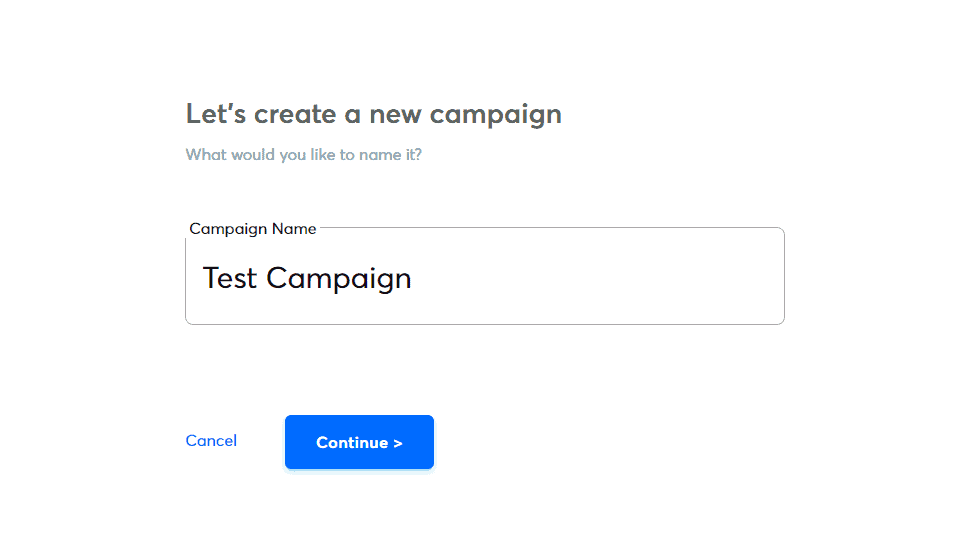
Next, you’ll need to specify your Instantly campaign. Simply choose the name of your campaign from the dropdown list.
If you don't have one in Instantly, quickly create one and then select its name in Clay. Don’t forget to click the ‘Refresh fields’ to see the newly added campaign from the dropdown.

Then, point to the 'Validated Work Emails' column when asked for the 'Email' field.

If you don’t have the email address of your target leads, I’d recommend checking this tutorial:
How to Automatically Find Work Emails of LinkedIn Contacts Using Clay
Finally, save and run the integration.
4) Verify the Result
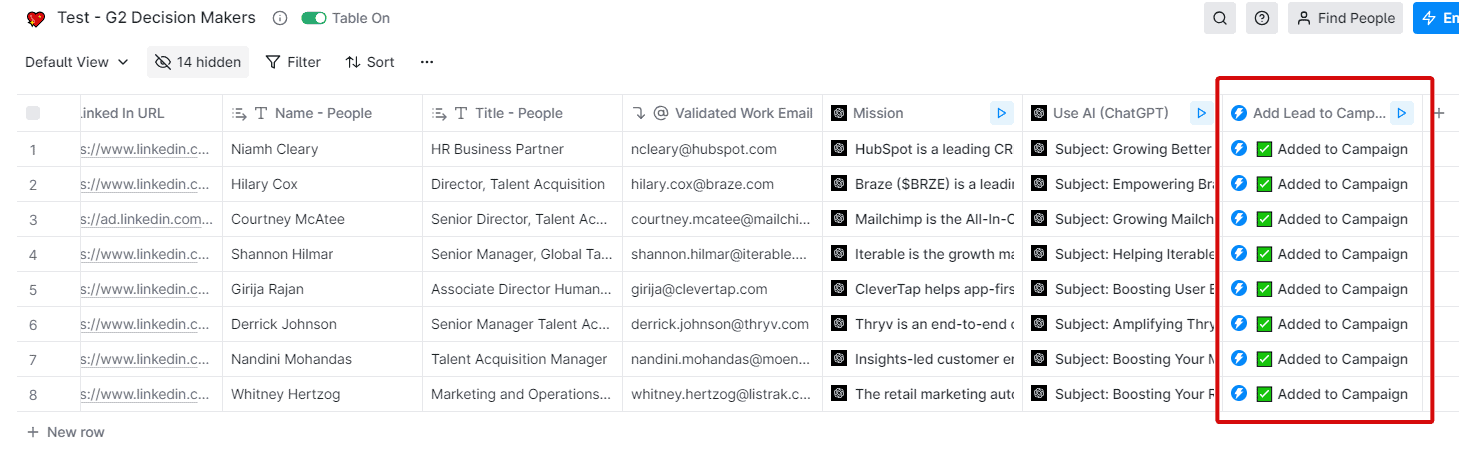
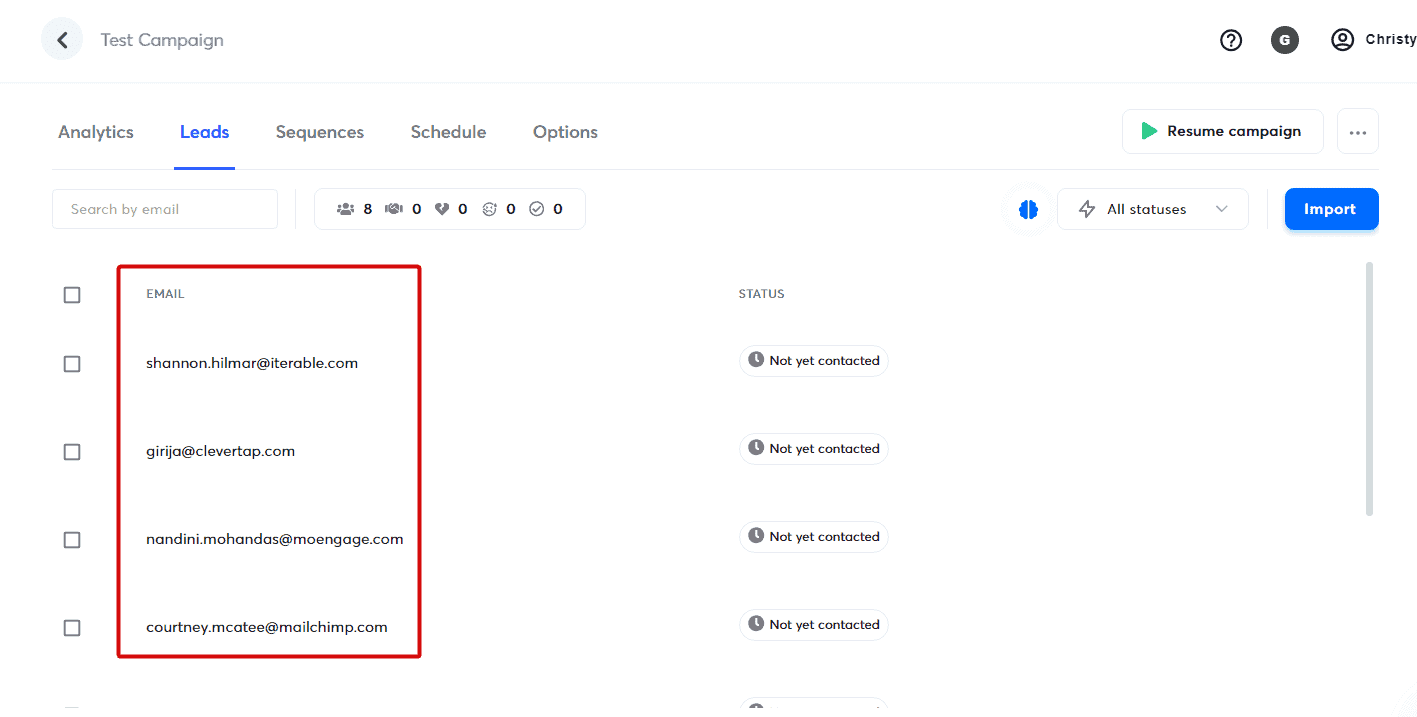
Once the integration is complete, look for the ‘Added to Campaign’ result in the Instantly column.
Next, check your campaign in Instantly. Go to the ‘Leads’ tab. You should find the list of emails imported from Clay. Now, you’re ready to send your cold emails!
Tips to Create Compelling Email First Lines
Emails have long been an important channel for businesses to engage with clients.
Therefore, your opening line is crucial. You need to nail that to entice the recipient to continue reading. You need to maximize its impact to increase your response rate.
AI tools like ChatGPT might be making our tasks a bit easier. But still, you’ll need the right approach to make your emails more effective.
Here are a few tips I find very helpful in creating personalized cold emails:
- Keep the tone casual yet professional. Remember, your first email is an introduction. So while you want to be approachable, you also need to exude professionalism. Starting with a ‘Hey, what's up!’ might be too laid back. Aim for a balance that's friendly but also respects the boundaries of a new business relationship.
- Show genuine interest. For example, mentioning your prospect’s company mission can pique their interest in return.
- Keep your email short. Aim for 50-150 words. Time is precious, and a concise email respects that.
- Don’t make your email forced and salesy.
- Be genuine. If your AI-generated text sounds too robotic, take the time to revise and add a personalized touch.
That’s A Wrap!
AI has truly revolutionized the way we do business in the 21st century. With ChatGPT and Clay, you can quickly craft cold emails and customize them for specific clients.
And its capabilities don't end here.
If you want to further level up, then I‘d recommend you read this tutorial on How to Find Recent News About Companies Using Clay. It's yet another strategy to make your communications timely and relevant.
Have any thoughts to share? Please let us know in the comments!
