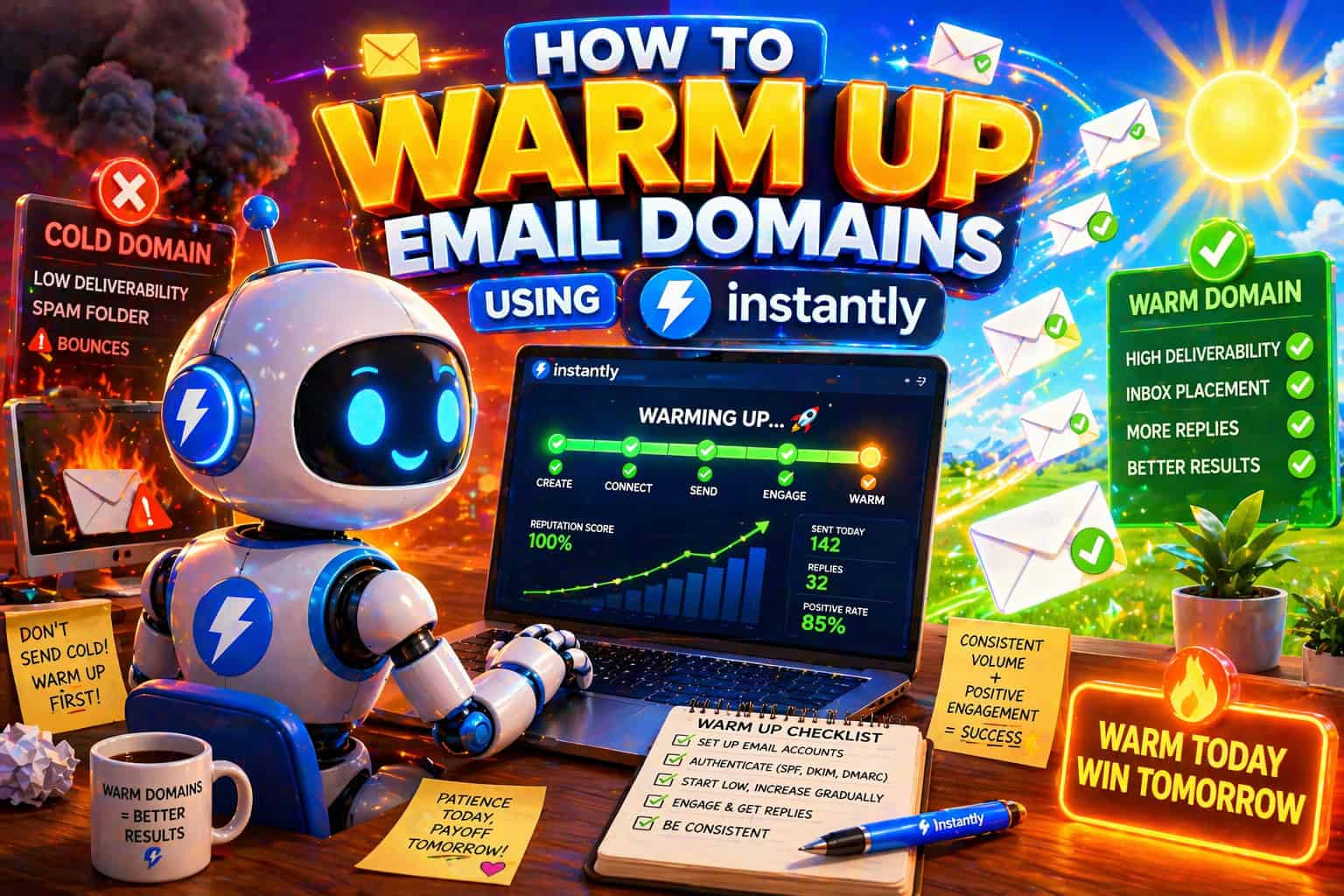
How To Warm Up Email Domains Using Instantly.ai in 2026
If you're running cold outreach from a new domain, warming it up properly is the difference between landing in inbox and getting buried in spam. We walked through the full Instantly.ai setup, so you know exactly what to turn on and why. It's about a 20-minute setup that runs on autopilot after that.

Mark Gotauco
Updated July 28, 2026
Reading Time: 6 minutes
Cold email only works if your emails actually land. And if you're sending from a brand new domain with zero history, most of them won't.
That's where email warmup comes in. Email providers don't know you yet. No sending history, no reputation, no data.
Without it, even your best cold email ends up in spam before anyone reads it. Warming up your domain fixes that by gradually building credibility with email providers so your outreach actually gets seen.
Instantly.ai is one of the cleaner tools to handle this. It automates the entire process inside a user pool that simulates real email behavior, including opens, replies, and spam-to-inbox rescues.
The unlimited warmup on all plans is what sets it apart from tools like Lemlist, where that feature costs more as you scale.
Here's exactly how to set it up.
Before You Start: Get Your DNS Right
Don't skip this part. Warmup won't help much if your domain authentication is broken.
Before connecting anything to Instantly, make sure your domain has MX, SPF, DKIM, and DMARC records configured through your provider.
Google Workspace and GoDaddy both have step-by-step guides inside Instantly's documentation if you need them.
Once you've set everything up, verify it using Instantly's built-in DNS checker or run it through MXToolbox. A clean DNS setup is the foundation everything else is built on. Get this wrong and no amount of warmup will save you.
Step 1: Connect Your Email Account
Log into Instantly and go to Email Accounts. Click "Add New."
You'll see three options here that aren't always obvious on the first pass:
- Pre-warmed accounts are ready to send on day one
- Done-For-You setup handles the full technical configuration and gets you warmed up in about two weeks
- Connect existing lets you bring in a Google Workspace or any SMTP/IMAP account you already have
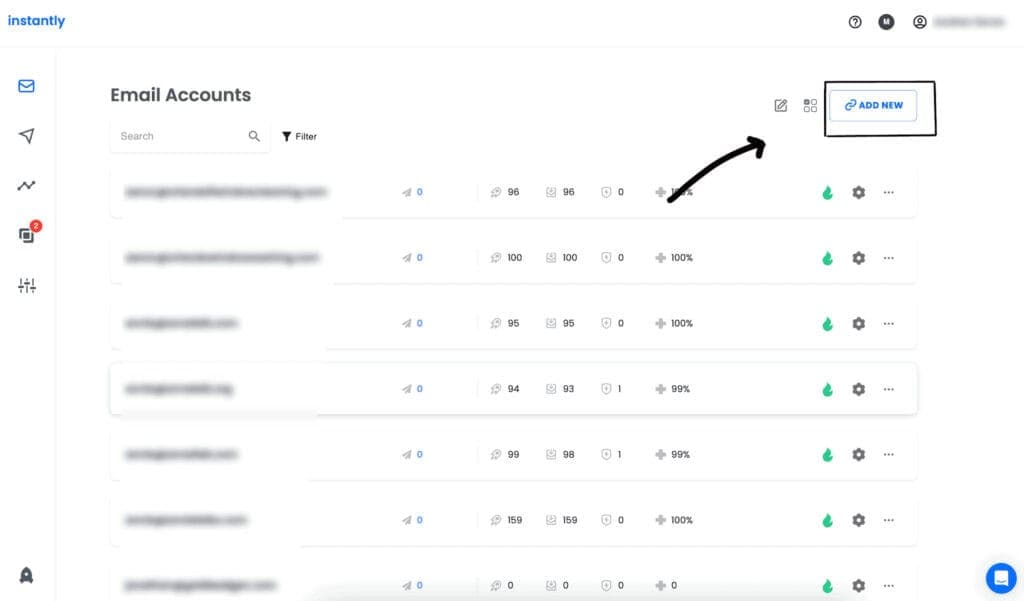
If you're starting fresh with a brand new domain, the Done-For-You option is the fastest path to get going. If you're connecting an existing account, you'll just need your SMTP and IMAP credentials ready. You can also enable forwarding during this step if you want to consolidate all replies into one inbox.
Step 2: Turn Warmup On
Once your account is connected, click into it from the Email Accounts dashboard and head to the Settings tab.
Scroll down until you see Warmup Settings and toggle it on.
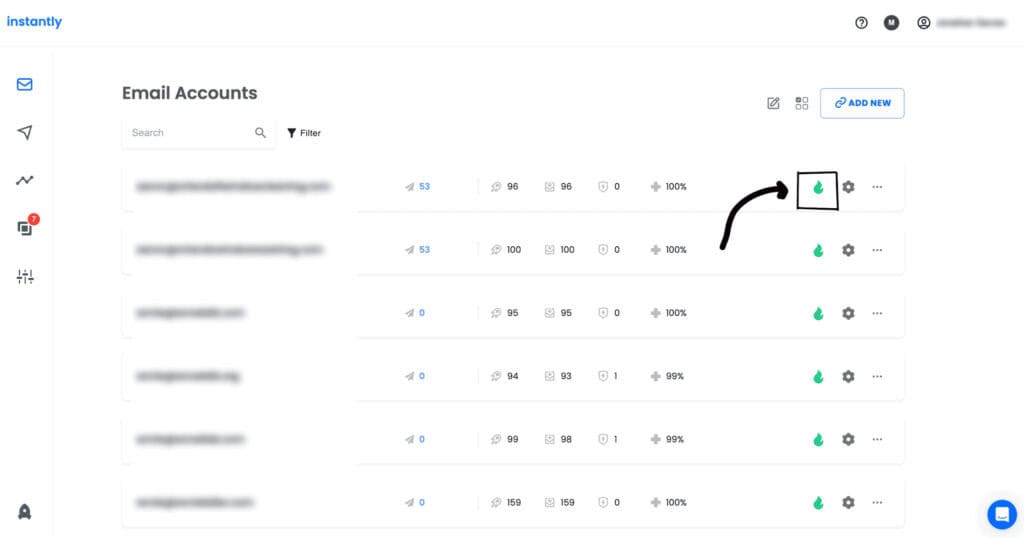
You'll see the flame 🔥 icon turn active.
A popup may appear walking you through the basics. Just read through it and click continue when it's done.
Step 3: Understanding Your Warmup Dashboard
After toggling warmup on, click the flame 🔥 icon and you'll see two tabs scroll out: Warmup and Settings.
Don't worry if the graph looks completely empty at first. Those bars represent the number of emails sent per day, and since you just started, there's nothing to show yet. That's completely normal.
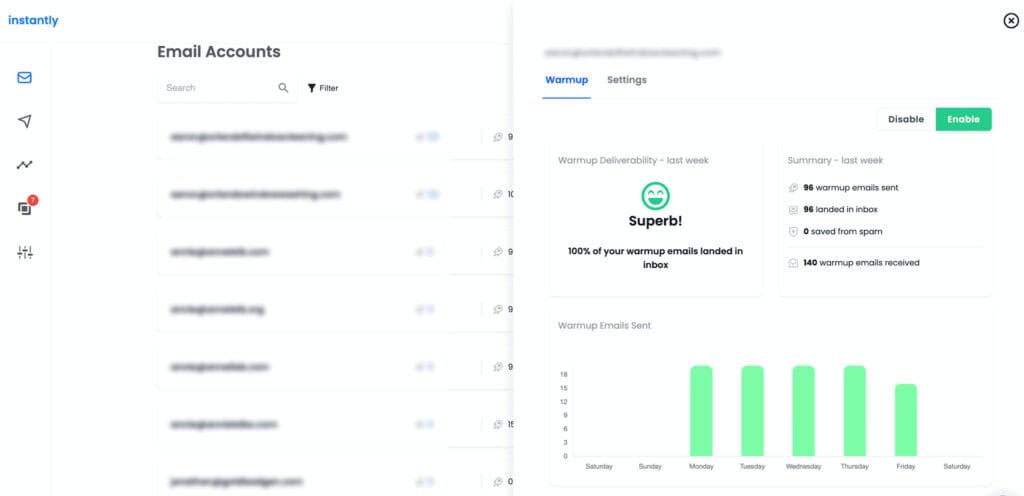
Give it a few days and you'll start seeing bars populate. Green bars mean warmup emails are landing in the inbox. You'll see red bars too, and that's a good thing, not a bad one.
That's Instantly rescuing emails from spam and moving them back to inbox. A mix of colors means the system is actively working to protect your sender reputation.
You'll also notice a percentage score near the top that reads something like "100% of your warmup emails landed in your inbox." That's the general health score Instantly is giving your domain.
Anything above 80% is where you want to be. Below that is when it starts getting concerning. We'll cover what to do if your numbers fall under 60% later in the article.
Step 4: Set Your Warmup Settings
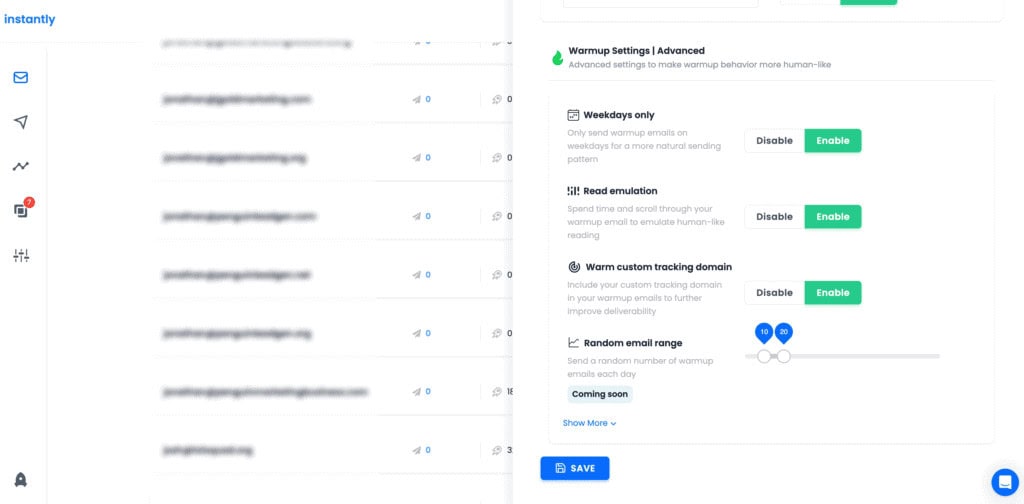
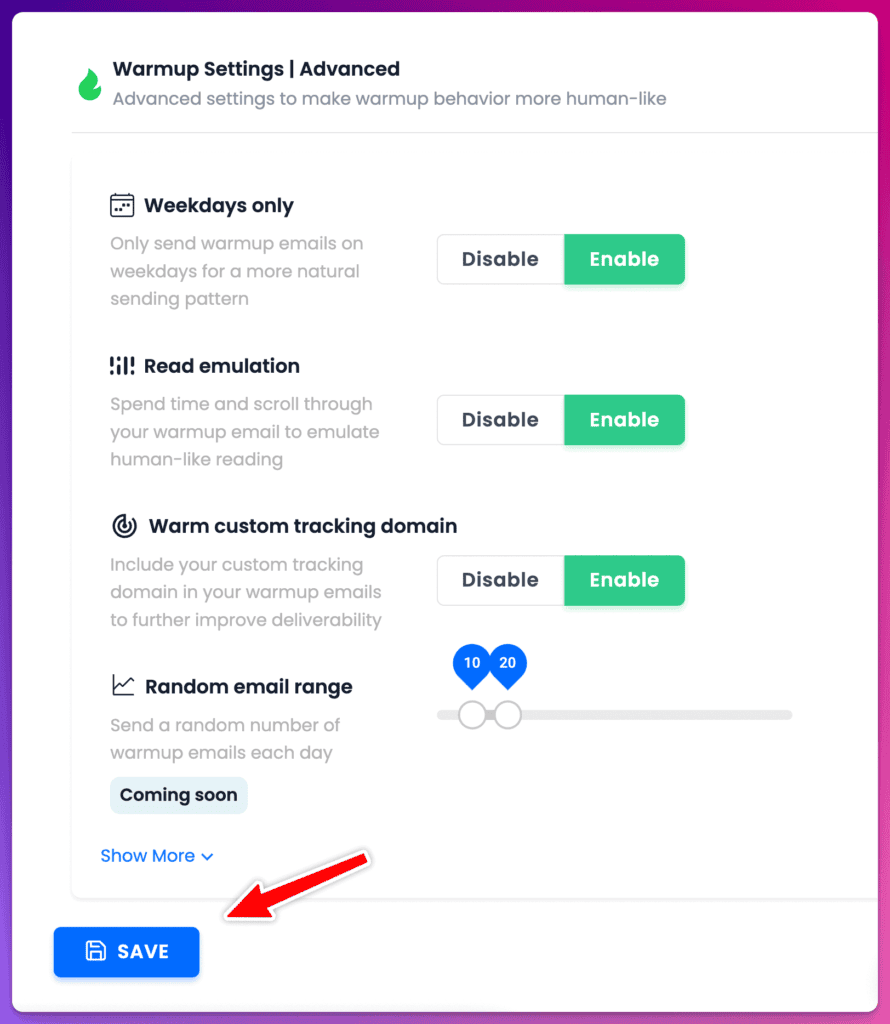
Scroll down until you see "Warmup Settings | Advanced." You want to turn everything on here. The goal of warmup is to replicate the sending habits of a normal email account.
Turning on weekdays only, read emulation, and custom tracking domains are all part of the process to boost your email credibility in the fastest amount of time possible.
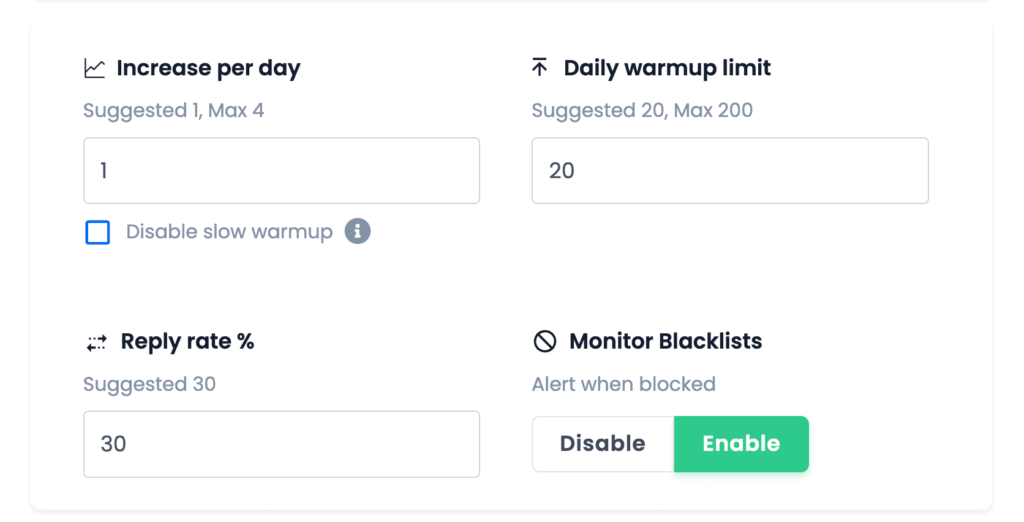
For the ramp-up settings, we recommend the following:
- Increase per day: 1
- Daily warmup limit: 20
- Reply rate: 30%
P.S. Take note of your warmup filter tag. You're going to need this!
Once you're done, click "Save" at the bottom.
Step 5: Note Your Warmup Filter Tag
Inside your warmup settings, you'll see a unique tag code tied to your account. Write it down or copy it somewhere you can find it. You're going to need it in the next step.
Step 6: Create a Gmail Filter for Your Warmup Emails
Once warmup is running, you'll start receiving simulated emails from the user pool. Don't freak out. This is exactly what's supposed to happen. But if you don't filter them out, they'll flood your inbox fast.
Here's how to clean that up in Gmail:
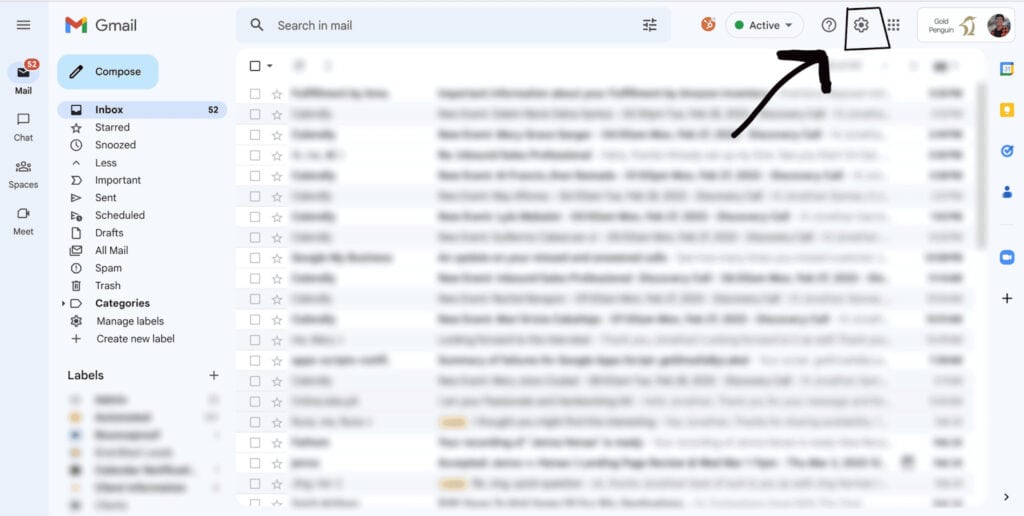
- Click the gear icon in the top right and open Settings
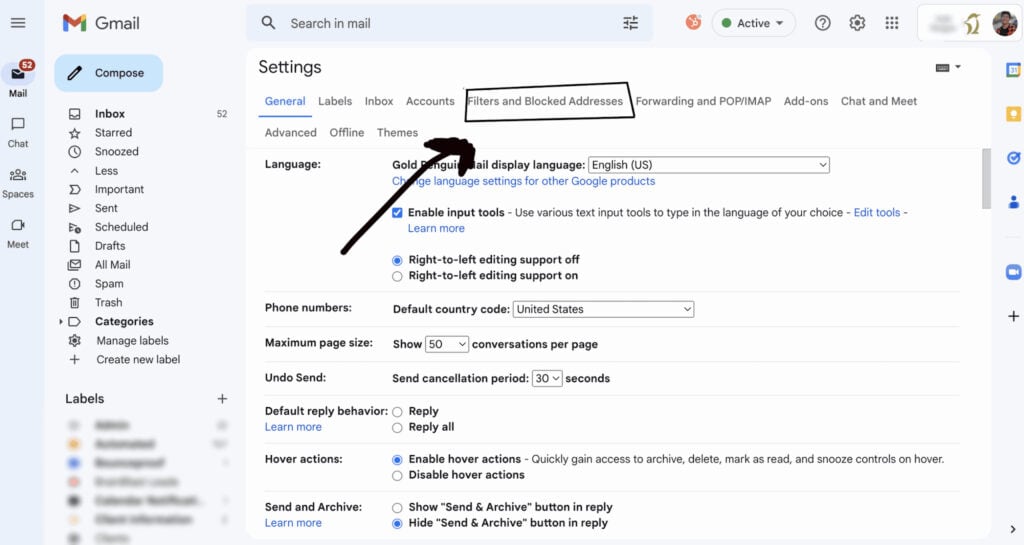
- Go to "Filters and Blocked Addresses"
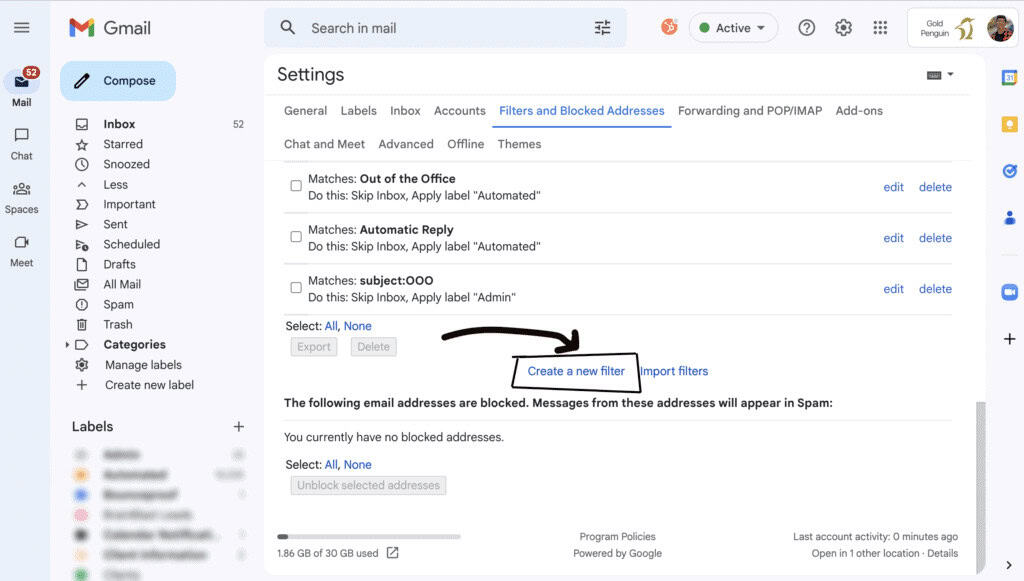
- Click "Create a new filter"
- Paste your warmup tag code into the "Has the words" field
- Click "Create filter" (not "Search")
- Check "Skip the inbox (Archive it)"
- Check "Apply the label," then create a label called "Warmup"
- Check "Also apply the matching conversations"
- Click "Create filter"
That's it. Warmup emails will archive automatically from here on and stay completely out of your way.
Step 7: Monitor Your Progress
Back in the Email Accounts dashboard, you can track warmup duration, your health score, and overall inbox placement performance over time.
The health score is the number to watch. It measures inbox placement over the last seven days. Above 90% and you're in good shape to start campaigns.
Dipping below 80% is worth paying attention to. Dropping below 60% means something needs fixing, whether that's your DNS records, your volume ramping too fast, or both.
Green bars trending upward over two weeks is the pattern you're looking for. Keep an eye on it but don't obsess over every single day.
How Long Should You Keep Warmup Running?
Keep it running the entire time you're doing cold outreach.
Maintaining 20 to 30% of your daily send volume through ongoing warmup helps protect your sender reputation even while live campaigns are in motion.
It's easy to set and forget once everything is configured. There's no good reason to turn it off.
For a broader deliverability primer, read our guide to boosting email deliverability.
My Final Thoughts
Two weeks of proper warmup, clean DNS, and the right settings will get your domain to a health score above 90%.
That's when your cold email actually has a chance of being read.
The setup takes maybe 20 minutes. After that, Instantly handles the rest on its own.
Want to Learn Even More?
If you enjoyed this article, subscribe to our free newsletter where we share tips & tricks on how to use tech & AI to grow and optimize your business, career, and life.