Cold emailing is one of the most effective ways to connect with target prospects. It’s a budget-friendly strategy to build your network.
When done right, it helps enhance engagement and close deals.
But first, you’ll need to start with high-quality leads. That’s where Clay steps in.
Clay is a powerful prospecting tool that helps you find and enrich leads. When used with Instantly, you can easily ramp up your cold outreach efforts.
With these tools, prospecting and sending personalized emails at scale has never been easier.
In this guide, I’ll show you how you can enrich your leads on Clay and send them to Instantly. By the end, you should be ready to rock your campaigns with both tools.
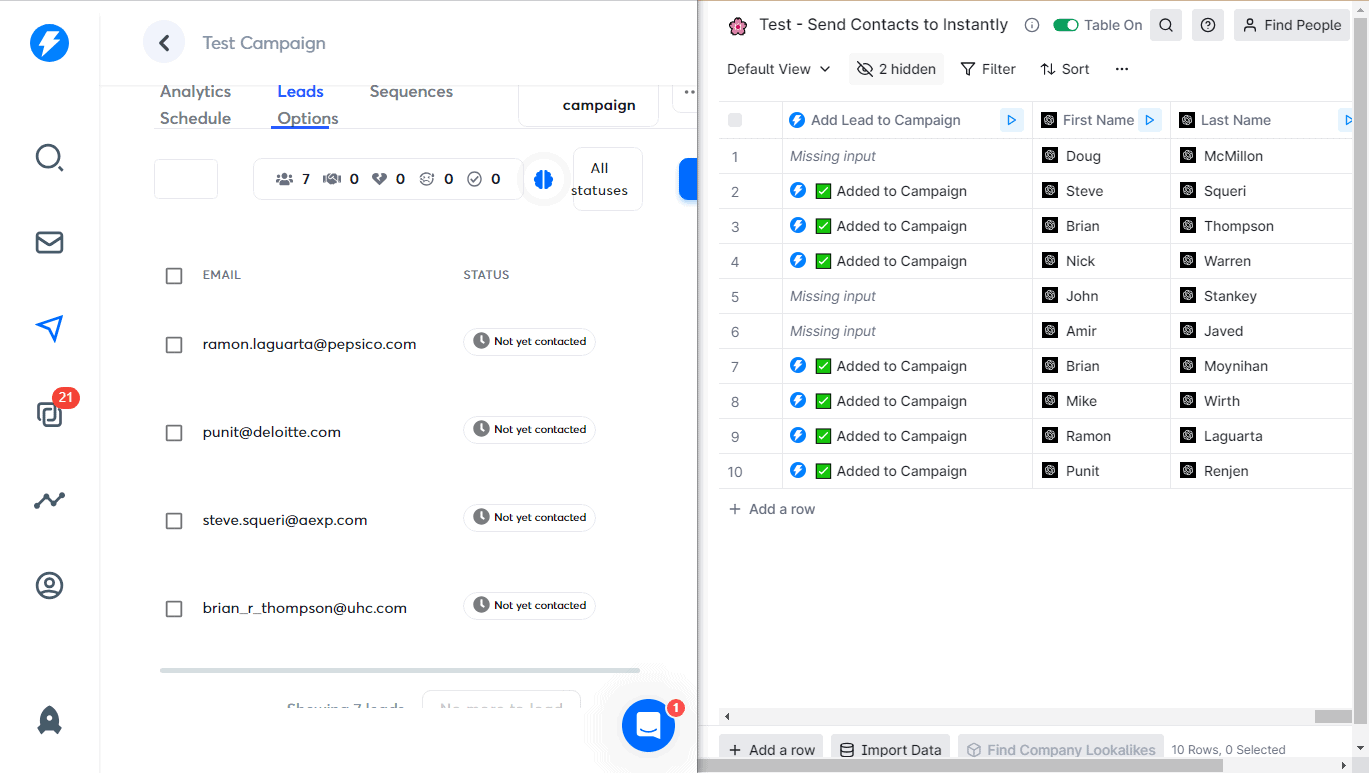
Sending Contacts From Clay to Instantly
1) Prepare Your List
For this tutorial, I’ve prepared a list of companies with their domains. We’ll need these details later on to pull the work emails of decision makers.
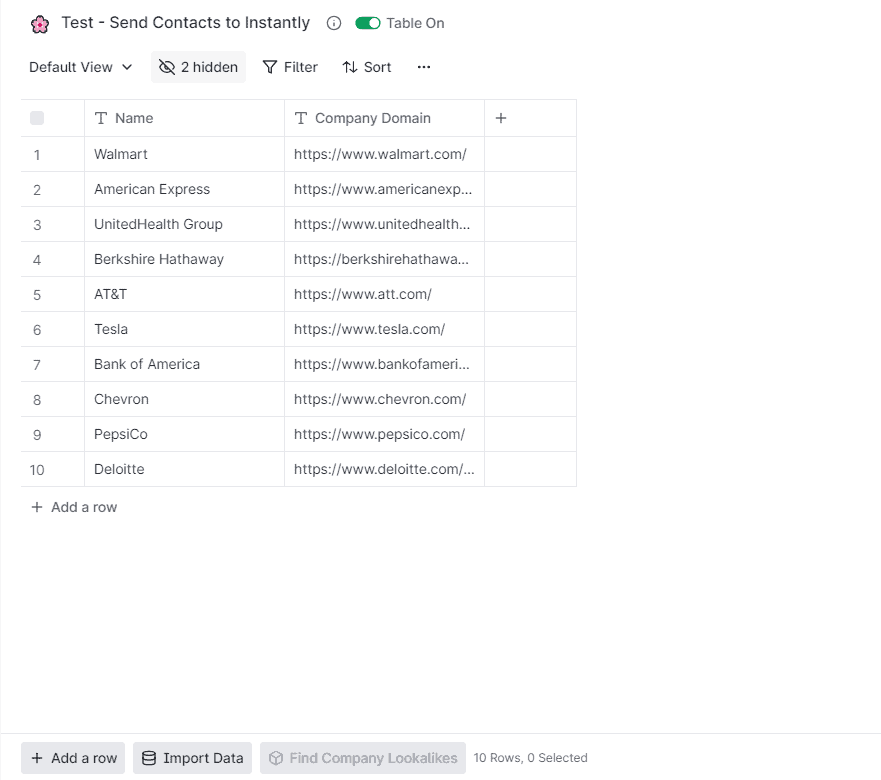
If you don’t have the website URLs of your target companies, then you’ll need to enrich your list. Read this tutorial about getting the site domain from a list of companies to learn how.
2) Find the Work Emails
Let’s find the contact details of decision-makers from your target companies.
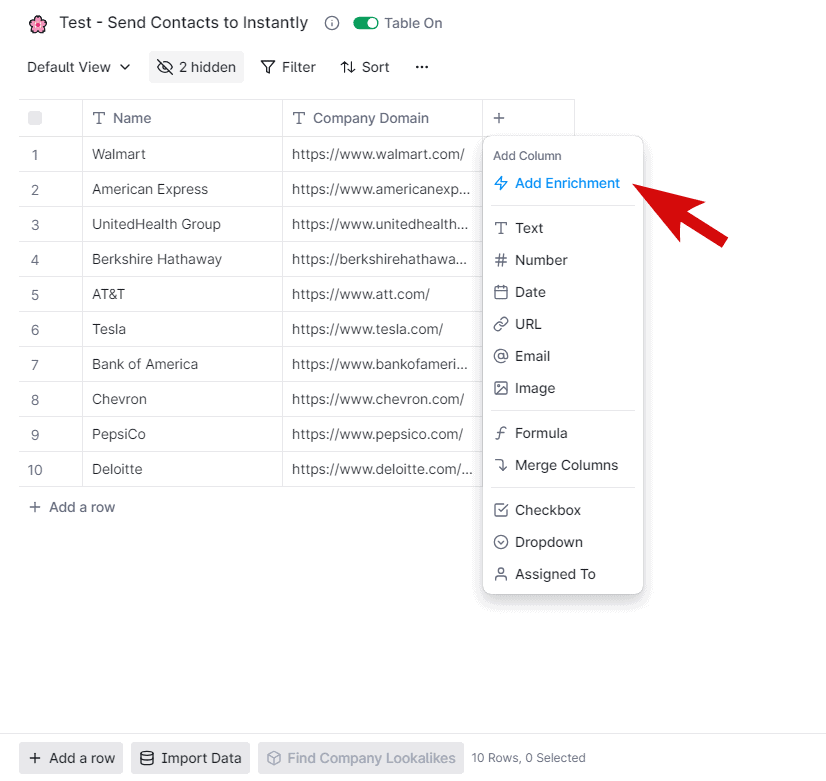
On your Clay table, let’s add a column and select ‘Add Enrichment.’
Go to the ‘Recipes’ tab and choose ‘SMBs - Find and Verify Decision Makers + Contact Information.’
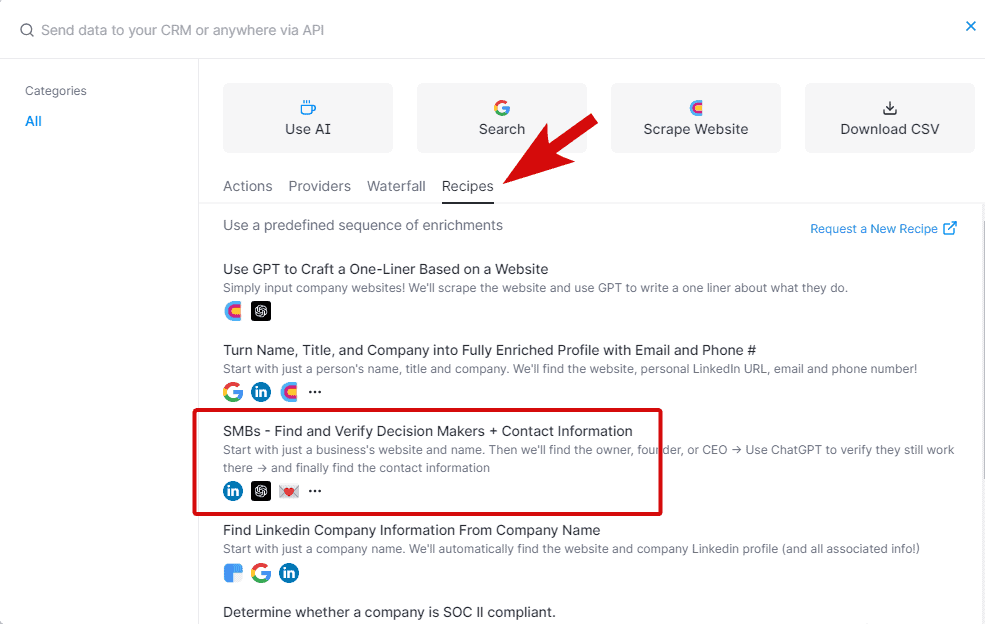
Clay puts together several apps so you can find the owner’s or CEO’s contact details with just one step. I find this the easiest route if you don’t like enriching your table multiple times.
Note that you can also change the recipe enrichment. Just select an app that you want to use from the dropdowns. Then, enter your API key for each app, or choose Clay’s API key.
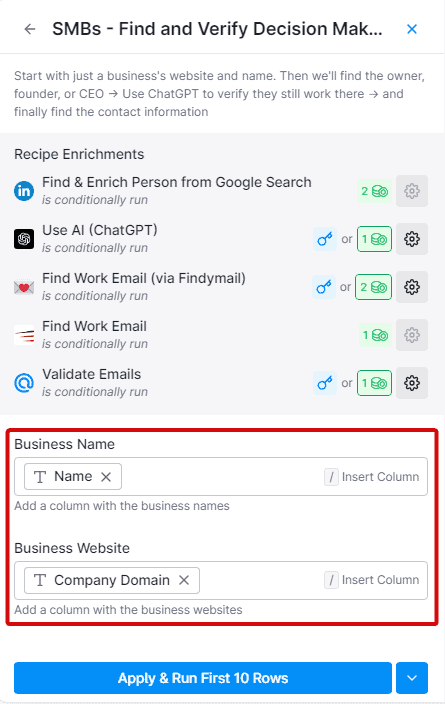
Once everything is set, all you need to do is add the company name and domain as inputs. And that’s it!
Click apply and run the integration.
Check your table. You should now see a few columns added containing information like LinkedIn URLs, names, and work emails. Feel free to hide the other redundant columns you don’t need.
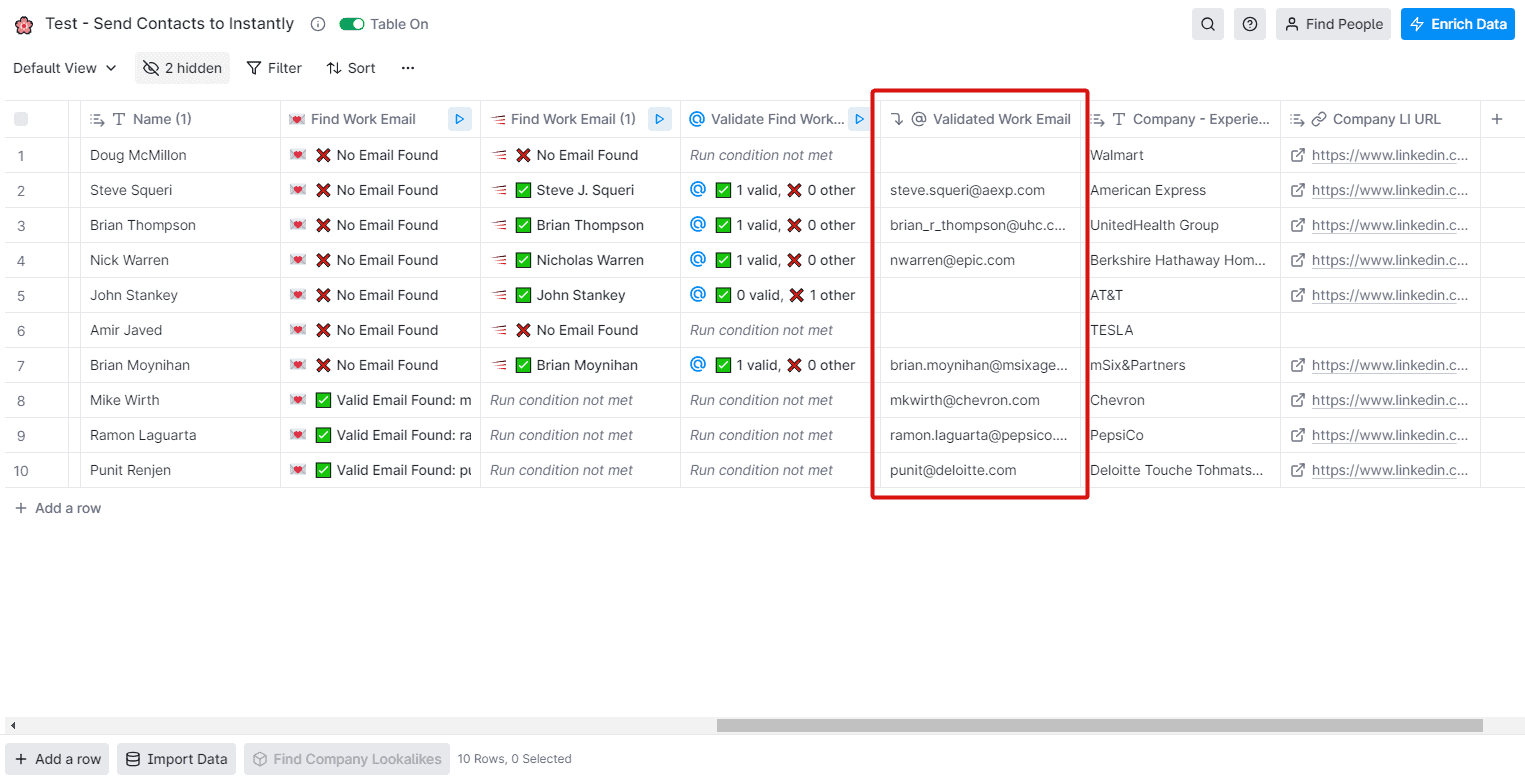
Note that Clay might not be able to pull all the relevant details of your leads, and this is completely normal. You can go ahead and clean your list before proceeding to the next step.
3) Add Leads to a Campaign in Instantly
Now you have the work emails, the next step is to send your contacts to Instantly.
Again, add an enrichment to your table. On the pop-up, select ‘Add Lead to Campaign’ integration.
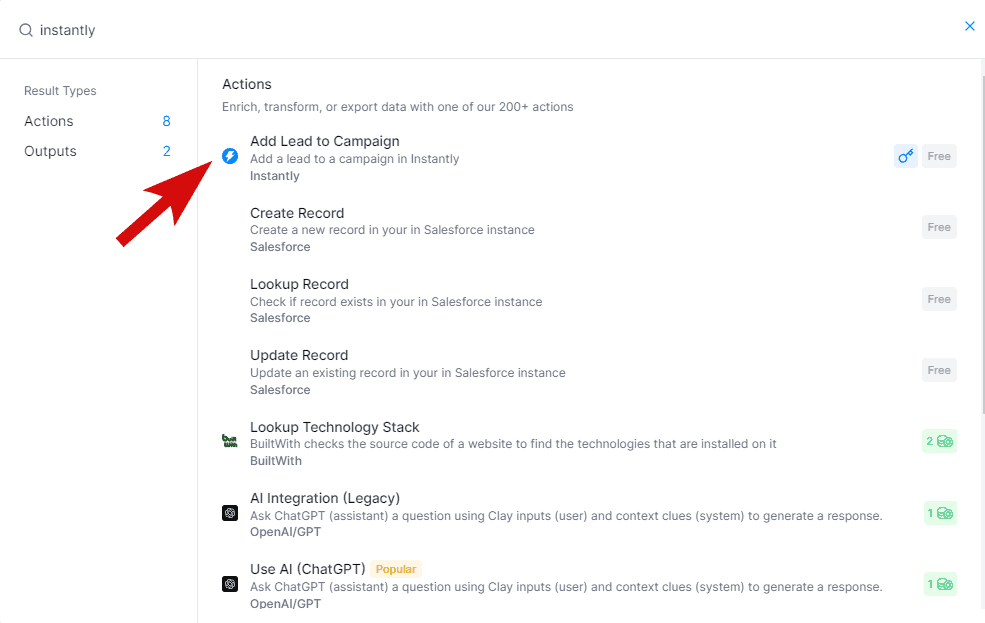
On the settings tab, you’ll need to set a few things.
First, authenticate your Instantly account by adding an API key.
To find your API key, open your Instantly account and go to your profile settings. Click the ‘Integrations’ tab and then ‘Copy API Key.’
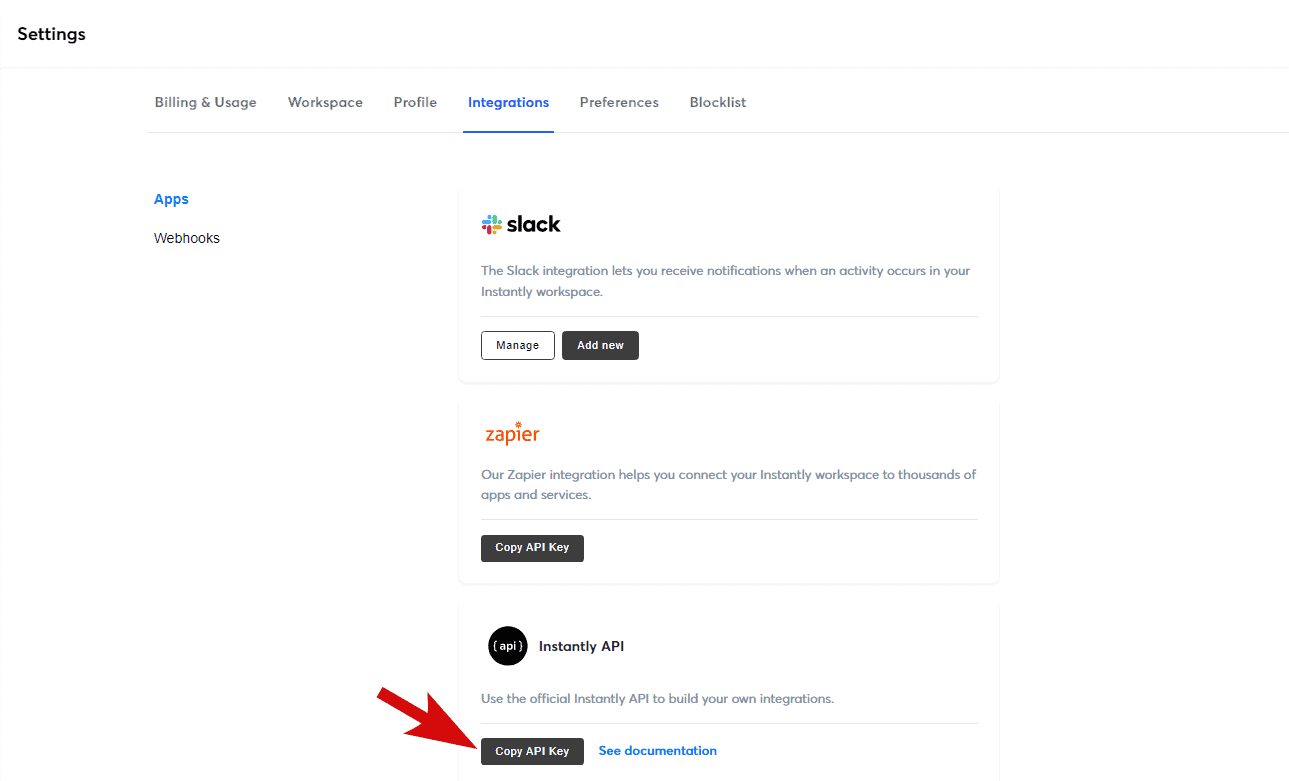
Back to your Clay account, tap the ‘Choose Instantly API key Account’ dropdown and click ‘Add an account.’ Then, paste your API key here.
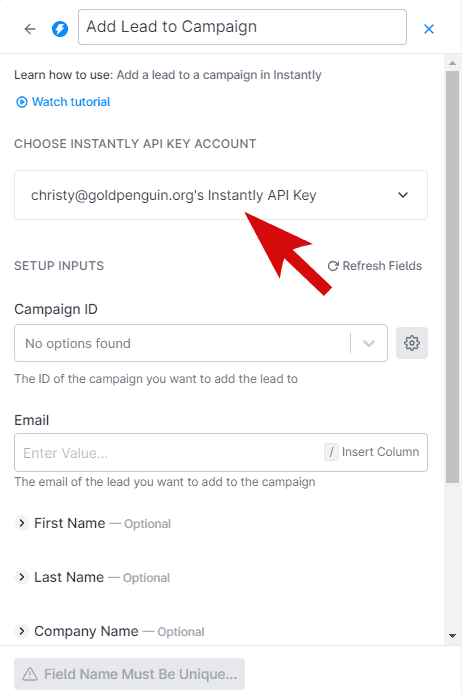
The second step is to enter your Campaign ID. Click the drop-down and choose the name of your campaign from the list.
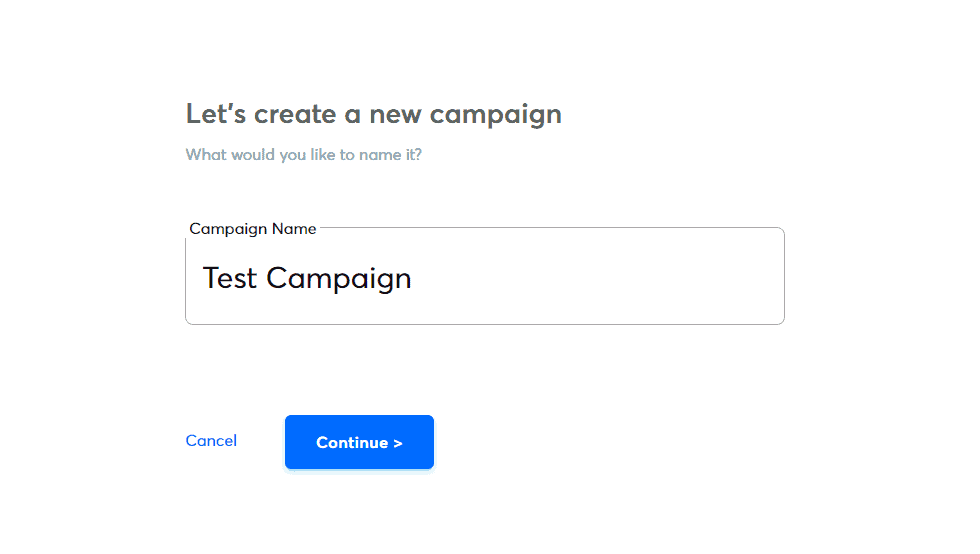
If you don’t have one yet, go back to your Instantly account and create a new campaign.
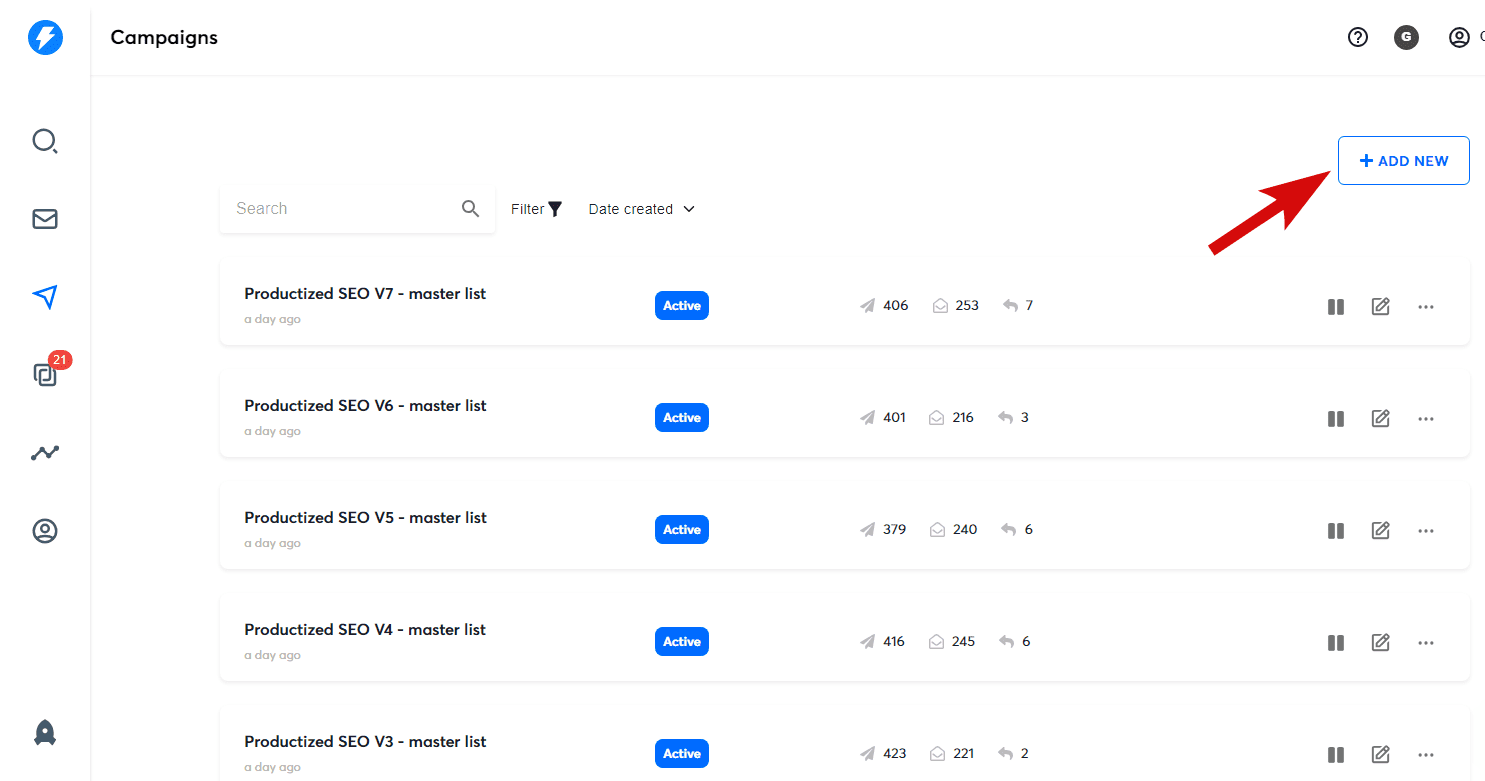
Then, enter the name of your campaign.
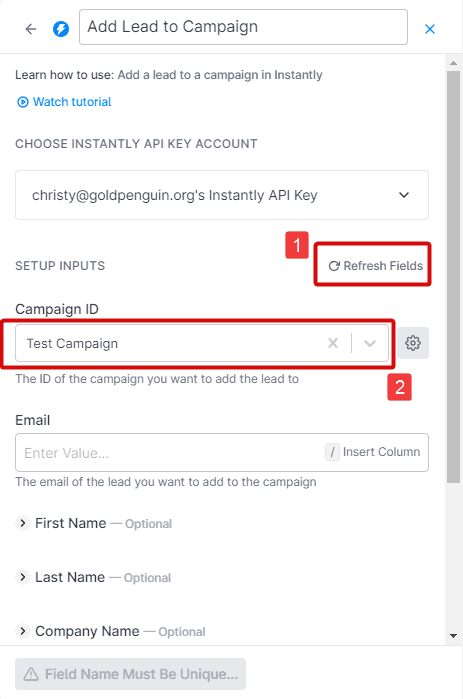
Back to your Clay dashboard, click the ‘Refresh fields’ to see the newly added campaign from the dropdown. Then, select it.
Finally, choose the ‘Validated Work Emails’ column from the ‘Email’ field.
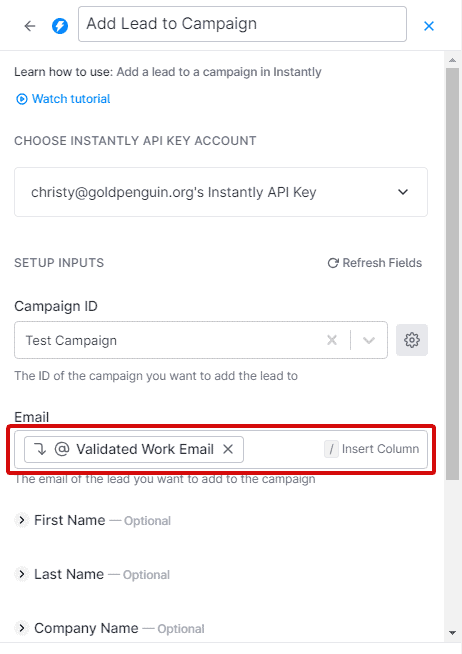
Save and run the integration.
4) Verify the Result
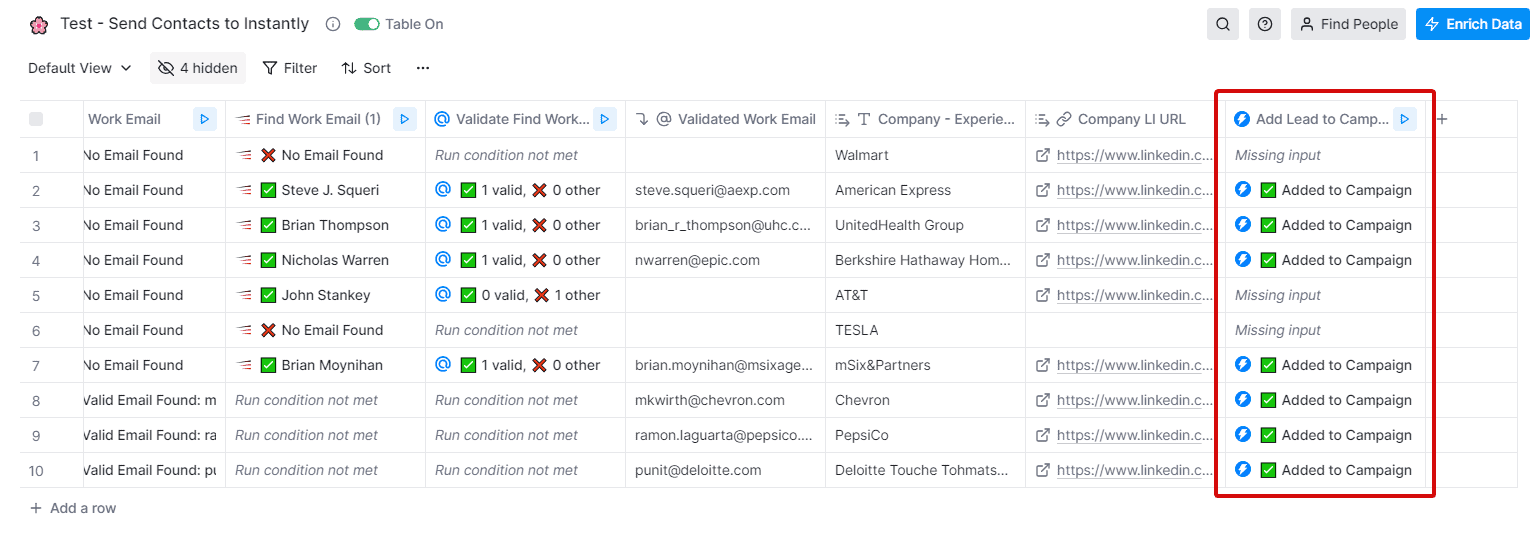
Once the integration is complete, you should now see the result ‘Added to Campaign’ under the Instantly column.
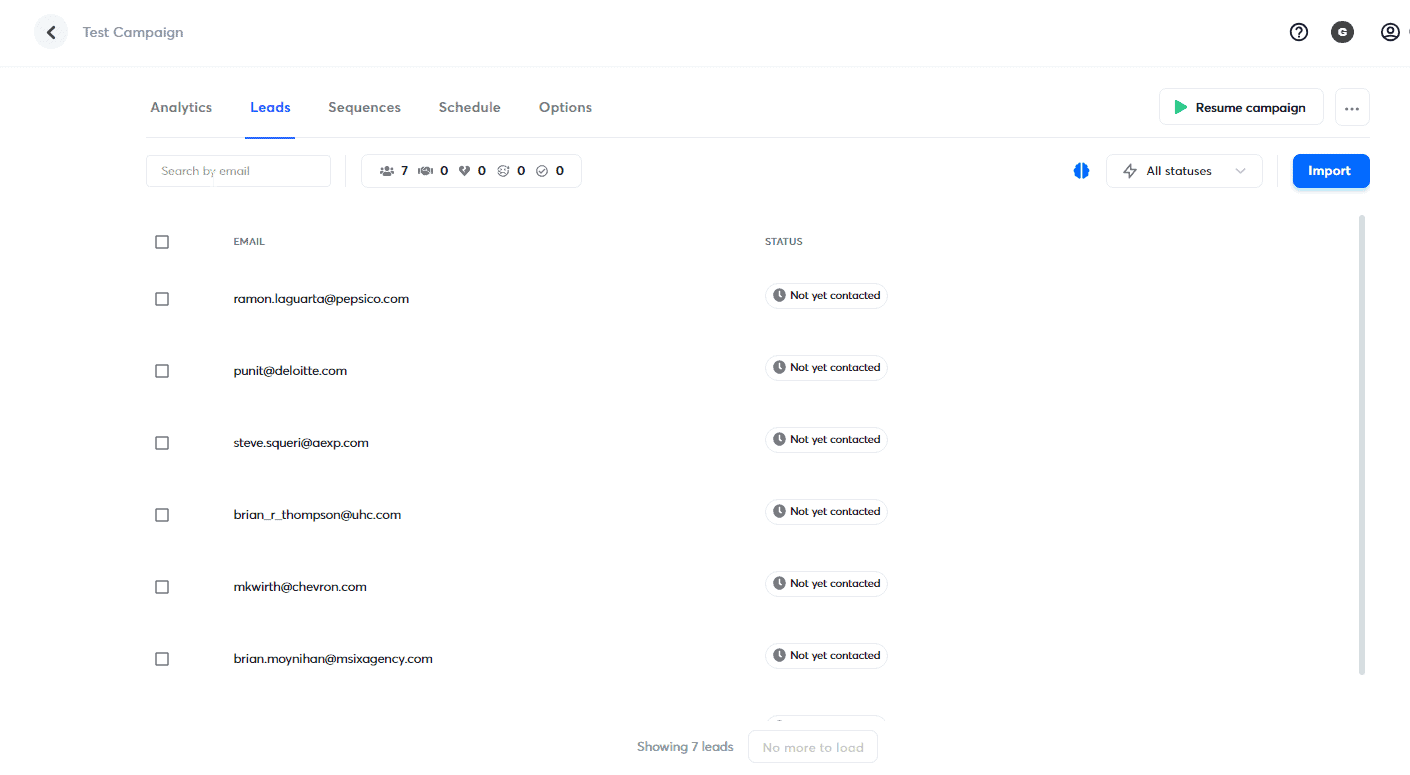
Now, check your list on your Instantly account. Click the campaign you’ve added and go to the ‘Leads’ tab. You should see here the list of emails added from Clay.
What’s Next?
Instantly is a great tool for automatically sending personalized emails at scale. When used with Clay, you’ll instantly build high-quality lead lists and boost your email marketing strategy.
Clay is not limited to just finding work emails. Experiment with Clay’s other features to find all the relevant information about your leads. For instance, you can:
- Discover the technology stack of any website using Clay
- Mine the latest fundraising data from companies
- Bulk analyze the Shopify store status of your prospects websites
- Find a business’s Google review information
So, there you have it! If you have any questions about this tutorial, please let me know in the comments.
